Steps with Plotly in R
Interactive Data Visualization with plotly
Welcome! 🎨
Note
Interactive Plotting with Plotly
Learn to create beautiful, interactive visualizations in R
What You’ll Learn:
- Installing and setting up Plotly
- Creating interactive scatter plots, box plots, and histograms
- Understanding binwidths and their impact
- Customizing interactive plots
- Building publication-ready visualizations
Part 0: Cool Features of Plotting
Grassy Area Chart Art 🌱
# ref: https://www.r-graph-gallery.com/138-green-world-data-art/

library(ggplot2)
library(RColorBrewer)
ngroup=20
names=paste("G_",seq(1,ngroup),sep="")
DAT=data.frame()

for(i in seq(1:50)){
  data=data.frame( matrix(0, ngroup , 3))
  data[,1]=i
  data[,2]=sample(names, nrow(data))
  data[,3]=prop.table(sample(
    c(rep(0,100),
    c(1:ngroup)),
    nrow(data)))
  DAT=rbind(DAT,data)
}
colnames(DAT)=c("Year","Group","Value")
DAT=DAT[order( DAT$Year, DAT$Group) , ]

ggplot(DAT, aes(x=Year, y=Value, fill=Group )) +
  geom_area(alpha=1 , color="transparent" )+
  theme_bw() +
  scale_fill_brewer(palette="greens", breaks=rev(levels(DAT$Group)))+
  theme(line = element_blank(),
        text = element_blank(),
       # line = element_blank(),
        title = element_blank(),
        legend.position="none",
        panel.border = element_blank(),
        panel.background = element_blank())
Tip
Read more about it at Data to Art
Grassy Area Chart Art Output 🌱
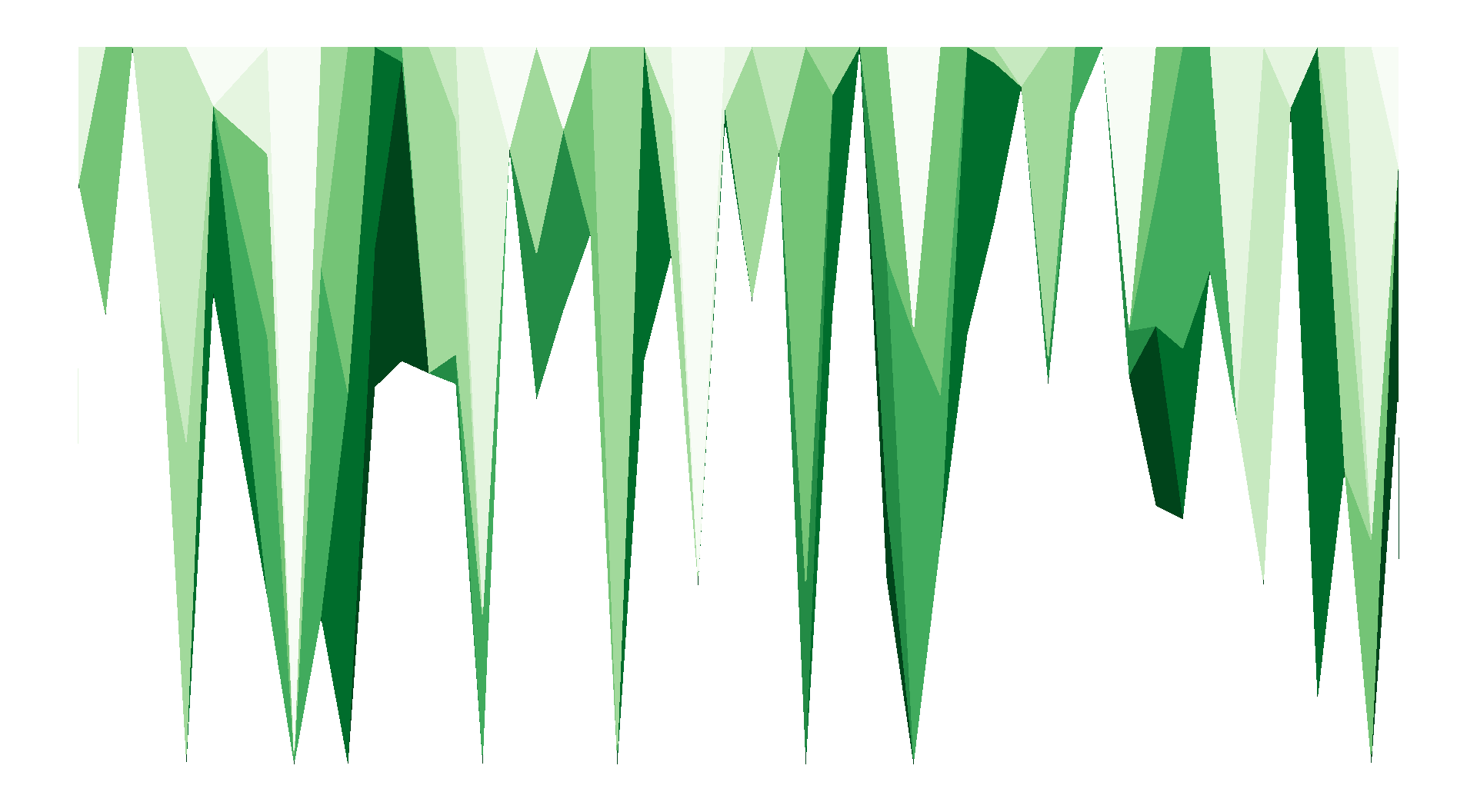
Chart Gallery 🎨
Explore a variety of chart types and styles available for all kinds of data visualization applications.

Find code examples to edit at; R-Graph-Gallery
Part 1: Getting Started With Plotly
What is Plotly? 🚀
Plotly is a powerful graphing library that creates interactive, publication-quality visualizations
Key Features:
- Interactive: Hover for details, zoom, pan, download
- Web-based and shareable: Works in RStudio, R Markdown, and Shiny
- Versatile: 40+ chart types
- Beautiful: Professional styling out-of-the-box
Plotly vs ggplot2: ggplot2 excels at static graphics; Plotly adds interactivity for web dashboards and exploration.
Clean Session Setup 🧹
Tip
Start with a clean workspace for reproducible R scripts
Install and Load Packages 📦
Note
List the packages your script needs, then install any that are missing.
Your First Plotly Plot 🎯
Note
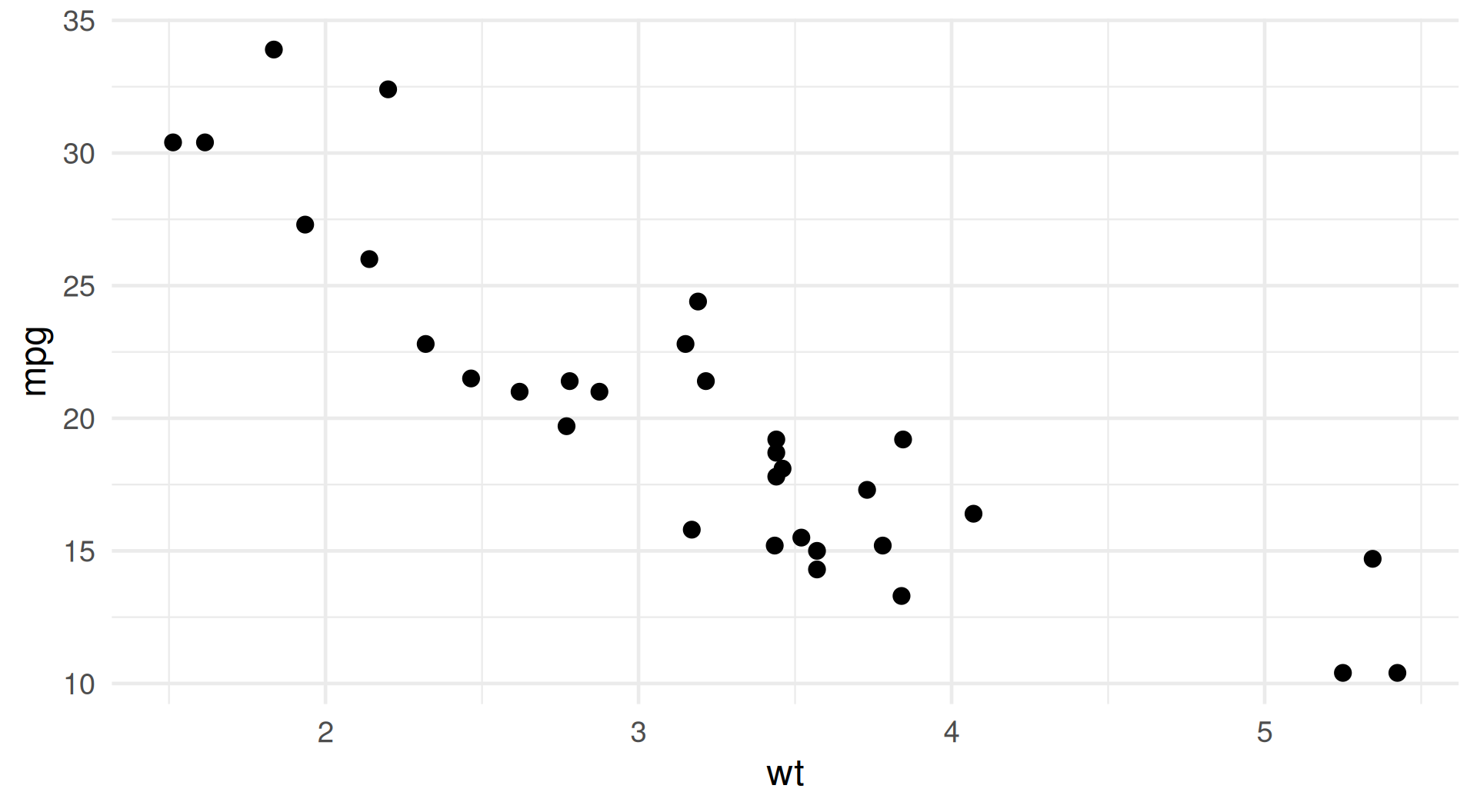
Simple Scatter Plot — The easiest way to start with Plotly
Result: Your First Plot 🎯
Note
Static ggplot2 version of the plotly output; run the plotly code for the interactive version.
Plotly Syntax: Key Components 🎯
Note
The first example uses the same core arguments in plot_ly().
plot_ly(): Main plotting functiondata: Your data framex,y: Variables (use~notation)type: Chart type (‘scatter’, ‘bar’, ‘box’, etc.)mode: For scatter plots (‘markers’, ‘lines’, ‘markers+lines’)
Interactive Features 🖱️
Tip
Every Plotly plot comes with built-in interactivity!
Explore the plot:
- Hover to inspect data values
- Zoom by clicking and dragging
- Pan with Shift + drag
- Box or lasso select points
- Reset with a double-click
Plotly Toolbar Controls 🖱️
- 📷 Download the plot as PNG
- 🔍 Zoom, pan, and select points
- 🏠 Reset axes to original view
- ⚙️ Toggle spike lines and axis hover
Part 2: Scatter Plots
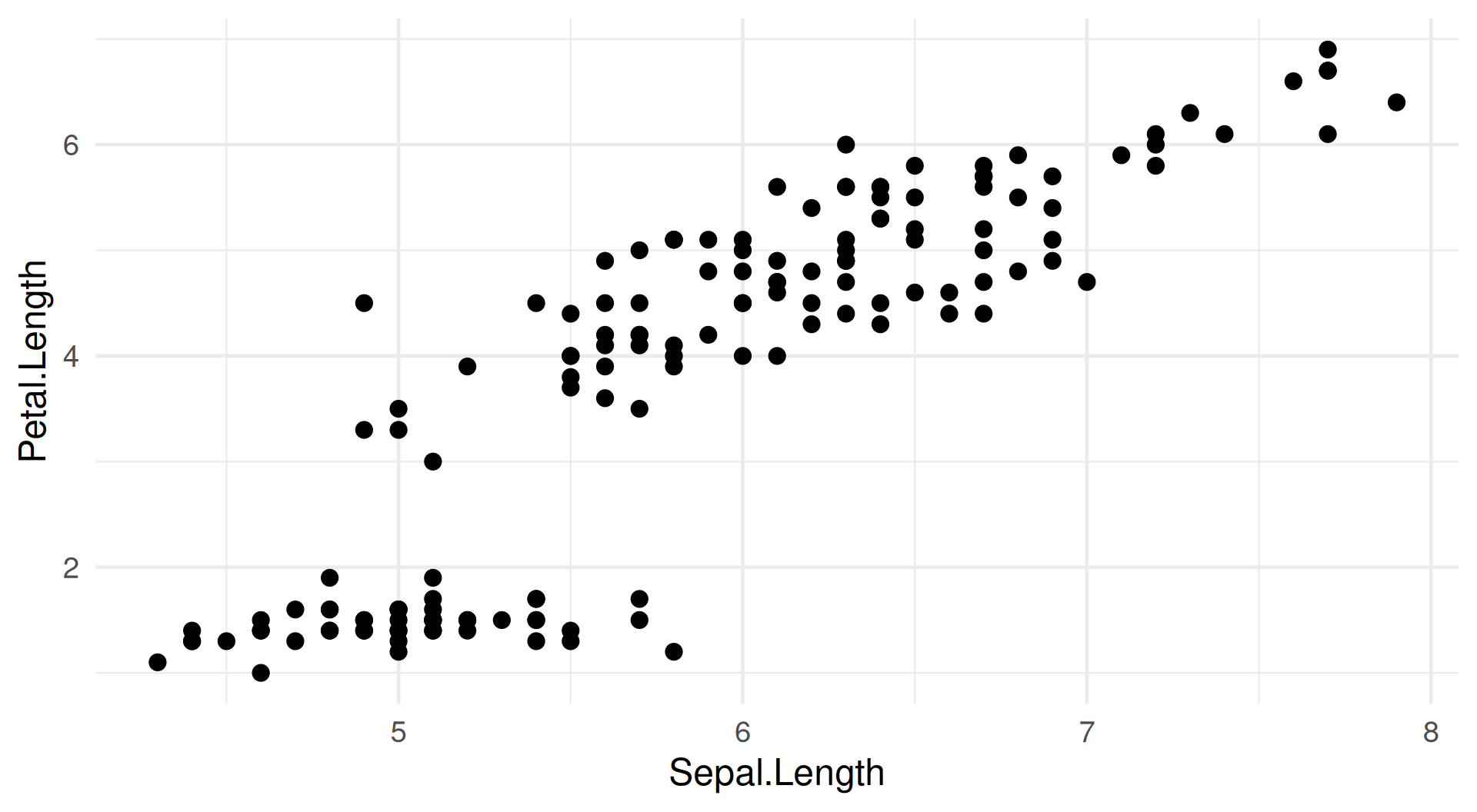
Basic Scatter Plot 📊
Exploring Relationships Between Variables
Result: Basic Scatter Plot 📊
Customize Scatter Plot Markers 🎨
Tip
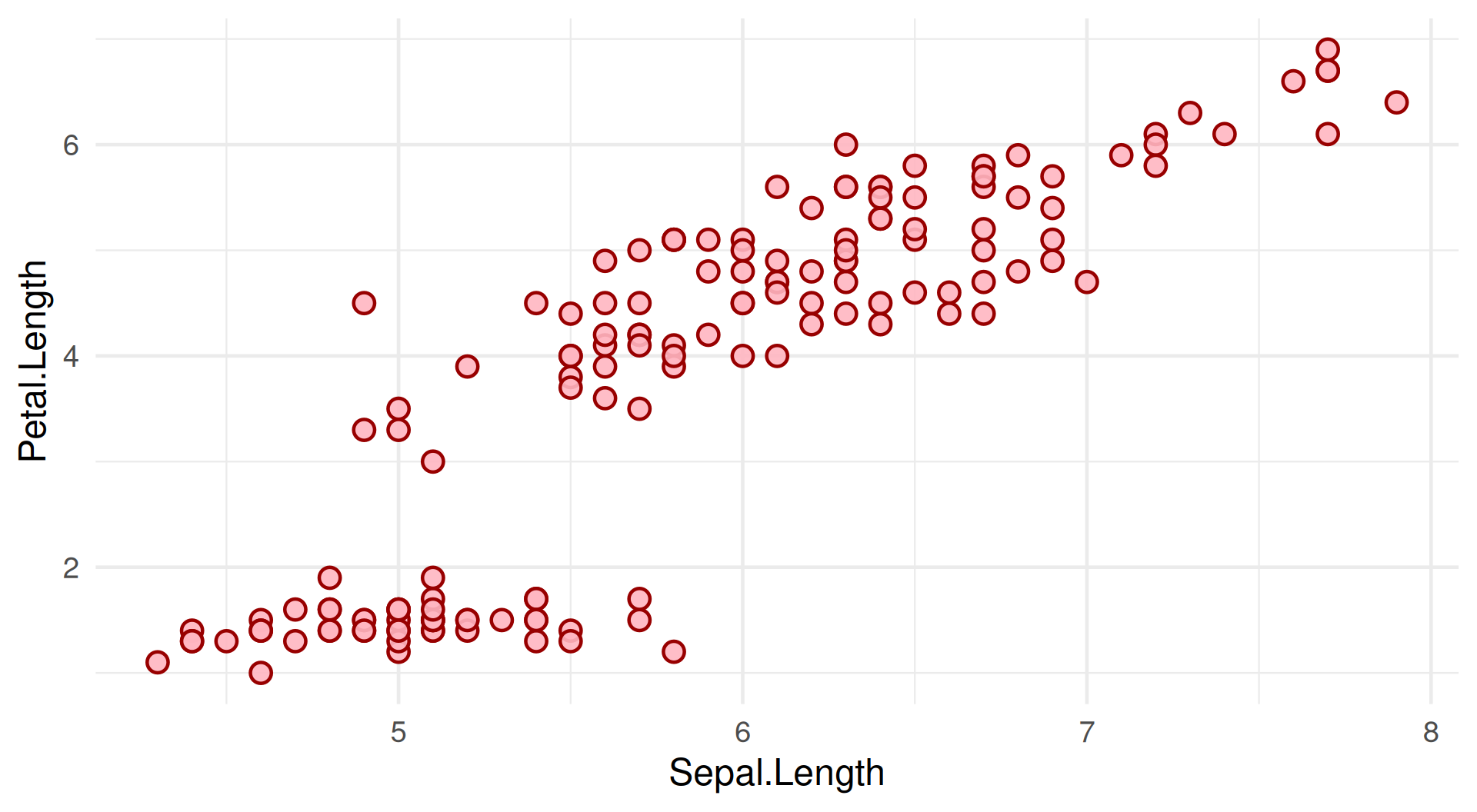
Adjust marker size, fill, and outline to make points easier to distinguish.
Customizing Markers:
Result: Custom Markers 🎨
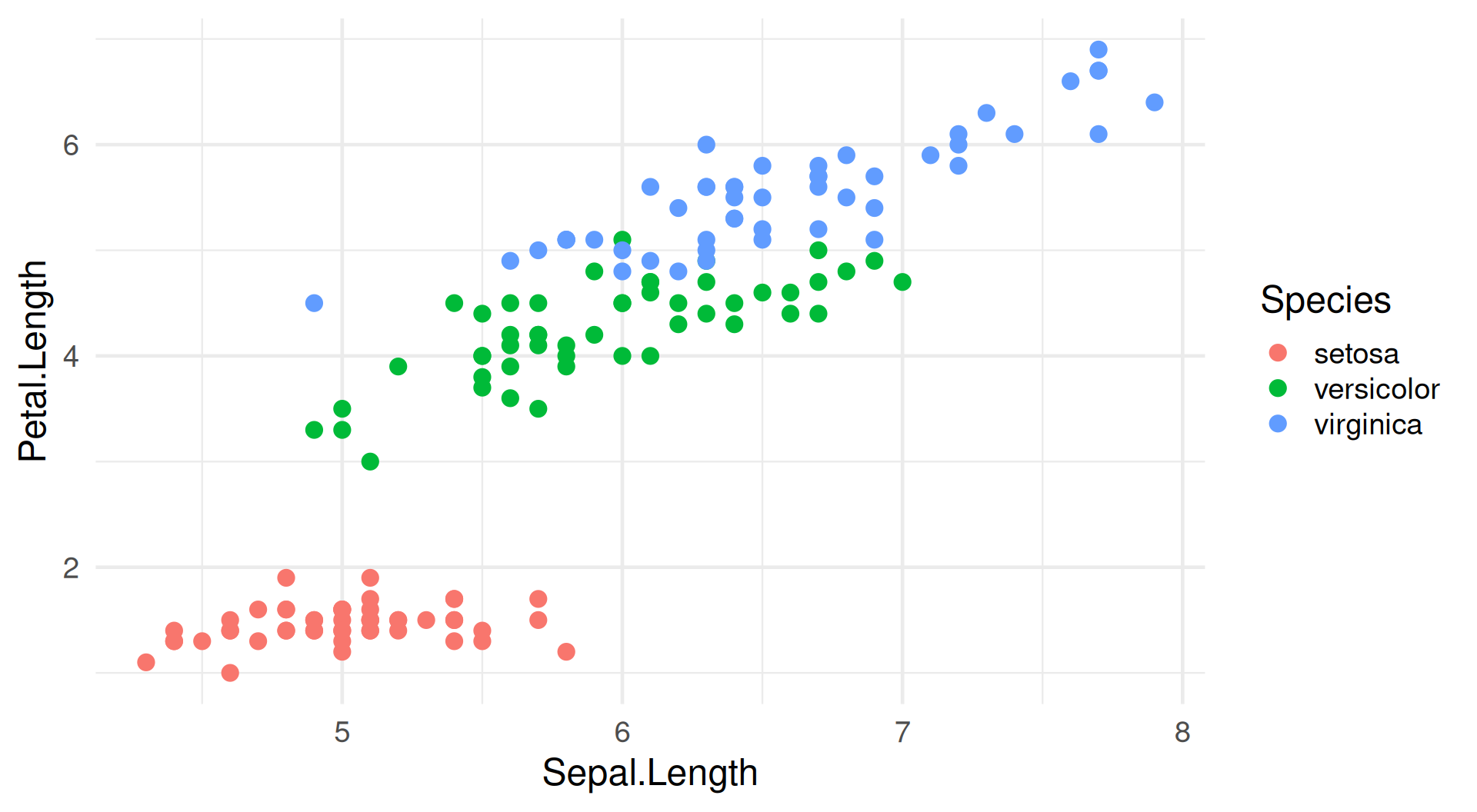
Color Points by Category 🎨
Adding Color Dimension
Visualize a third variable with color
Result: Color by Species 🎨
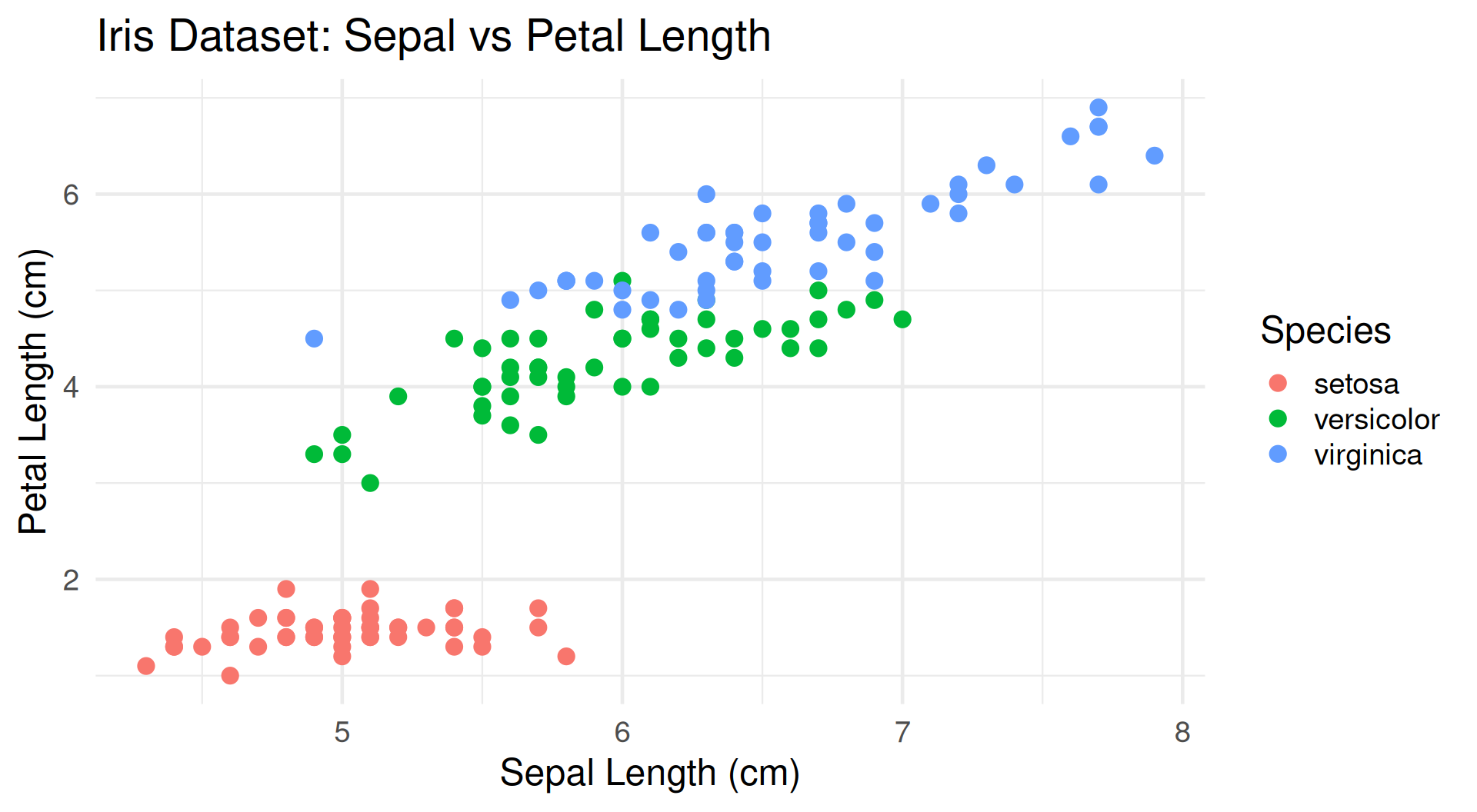
Add Labels and Choose Colors 🎨
Color Options:
color = ~variable: map a variable to colorcolors = 'Set1': use an RColorBrewer palettecolors = c(...): provide custom colors
Result: Labeled Scatter Plot 🏷️
Scatter with Custom Hover 🔍
Tip
Customize Tooltip Information
Choose What Appears on Hover 🔍
Note
Use hoverinfo to show only the details that help explain the plot.
Hover Options:
hoverinfo = 'x': Show only x valuehoverinfo = 'y': Show only y valuehoverinfo = 'x+y': Show both coordinateshoverinfo = 'text': Show custom texthoverinfo = 'none': Disable hover
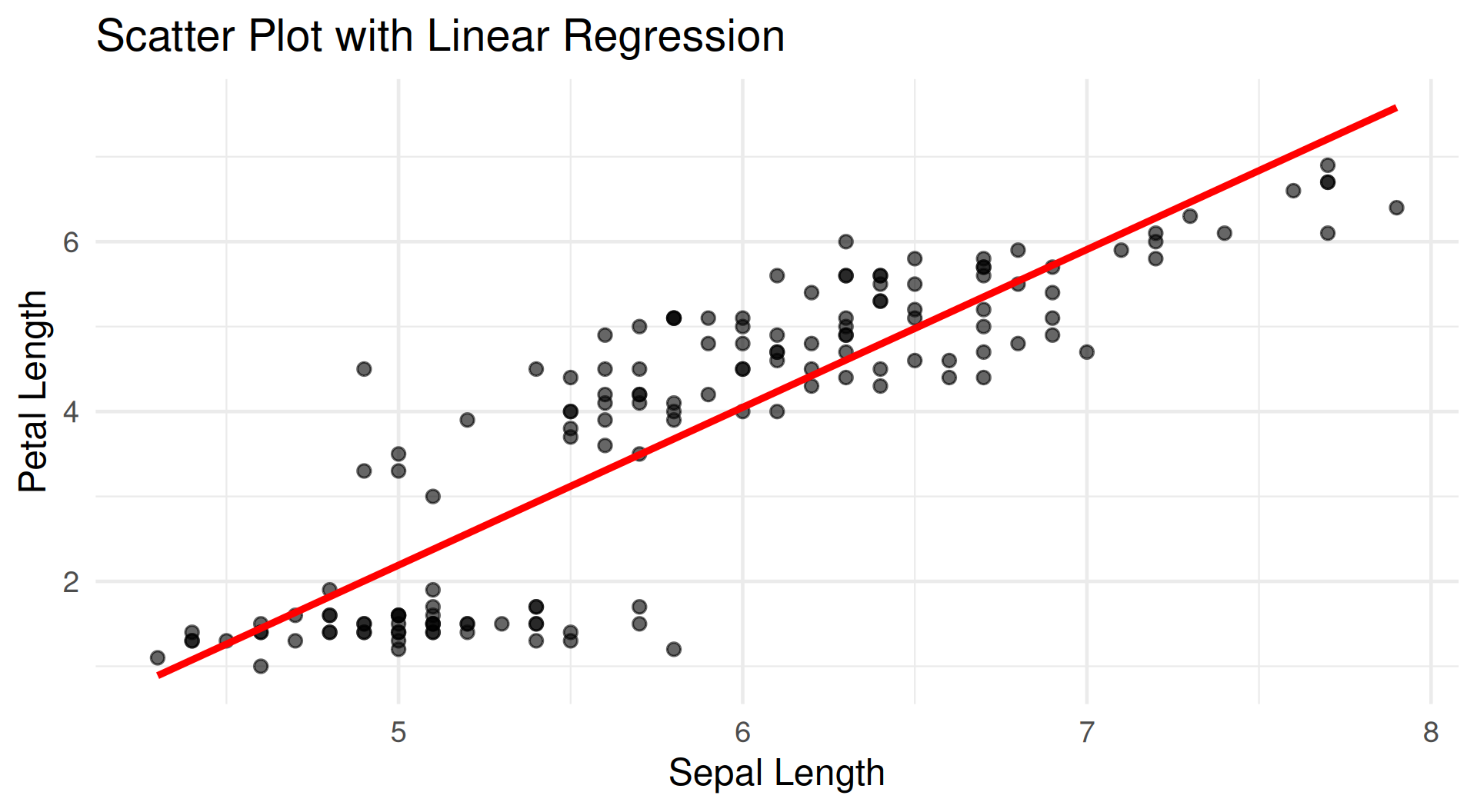
Scatter with Trend Line 📈
Adding Statistical Models
library(plotly)
library(dplyr)
# Calculate linear model
model <- lm(Petal.Length ~ Sepal.Length, data = iris)
iris$predicted <- predict(model)
# Plot with trend line
fig <- plot_ly(data = iris, x = ~Sepal.Length) %>%
add_markers(y = ~Petal.Length, name = 'Actual',
marker = list(size = 8, opacity = 0.6)) %>%
add_lines(y = ~predicted, name = 'Trend',
line = list(color = 'red', width = 2)) %>%
layout(title = "Scatter Plot with Linear Regression",
xaxis = list(title = "Sepal Length"),
yaxis = list(title = "Petal Length"))
figResult: Scatter with Trend Line 📈
Part 3: Box Plots
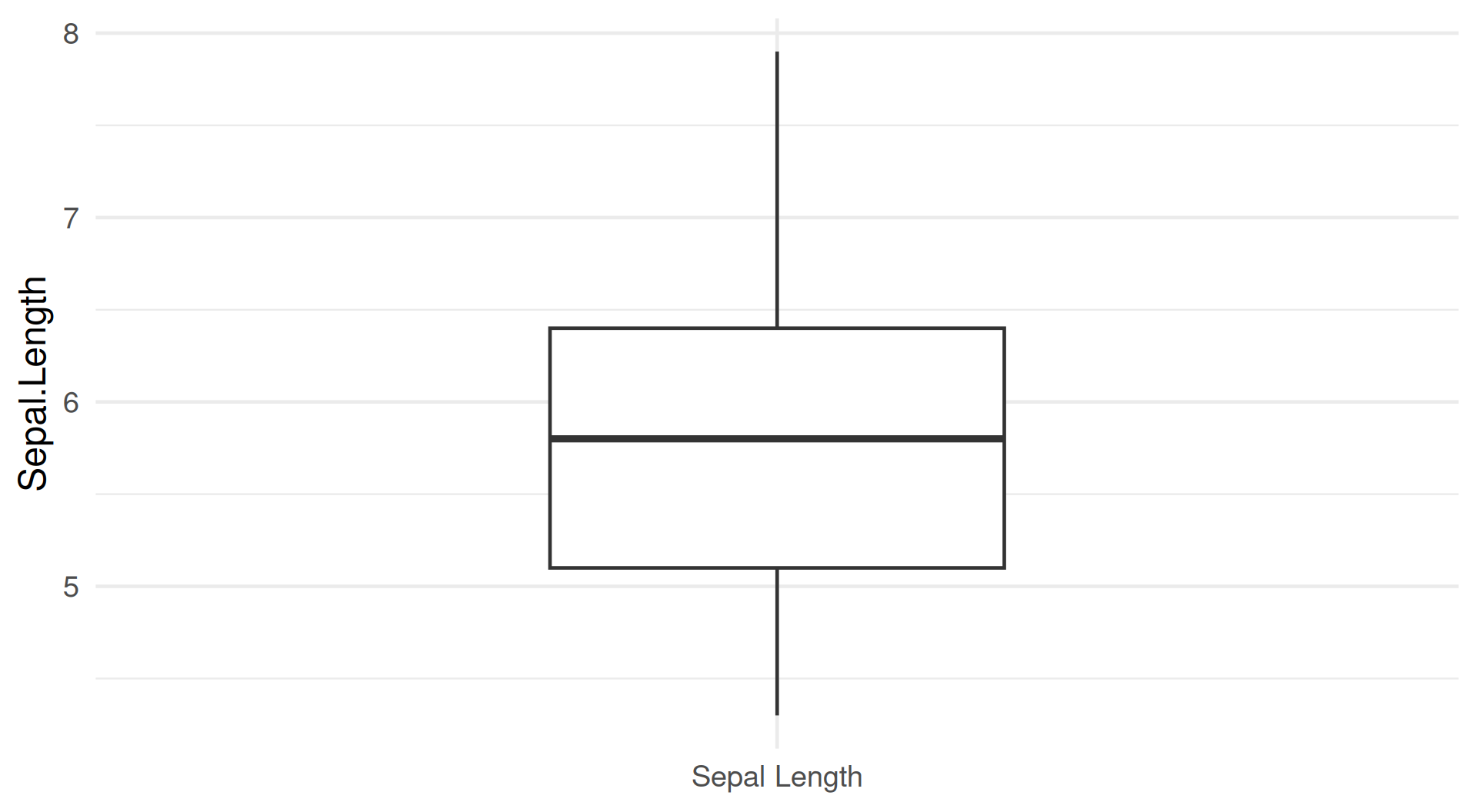
Basic Box Plot 📦
Note
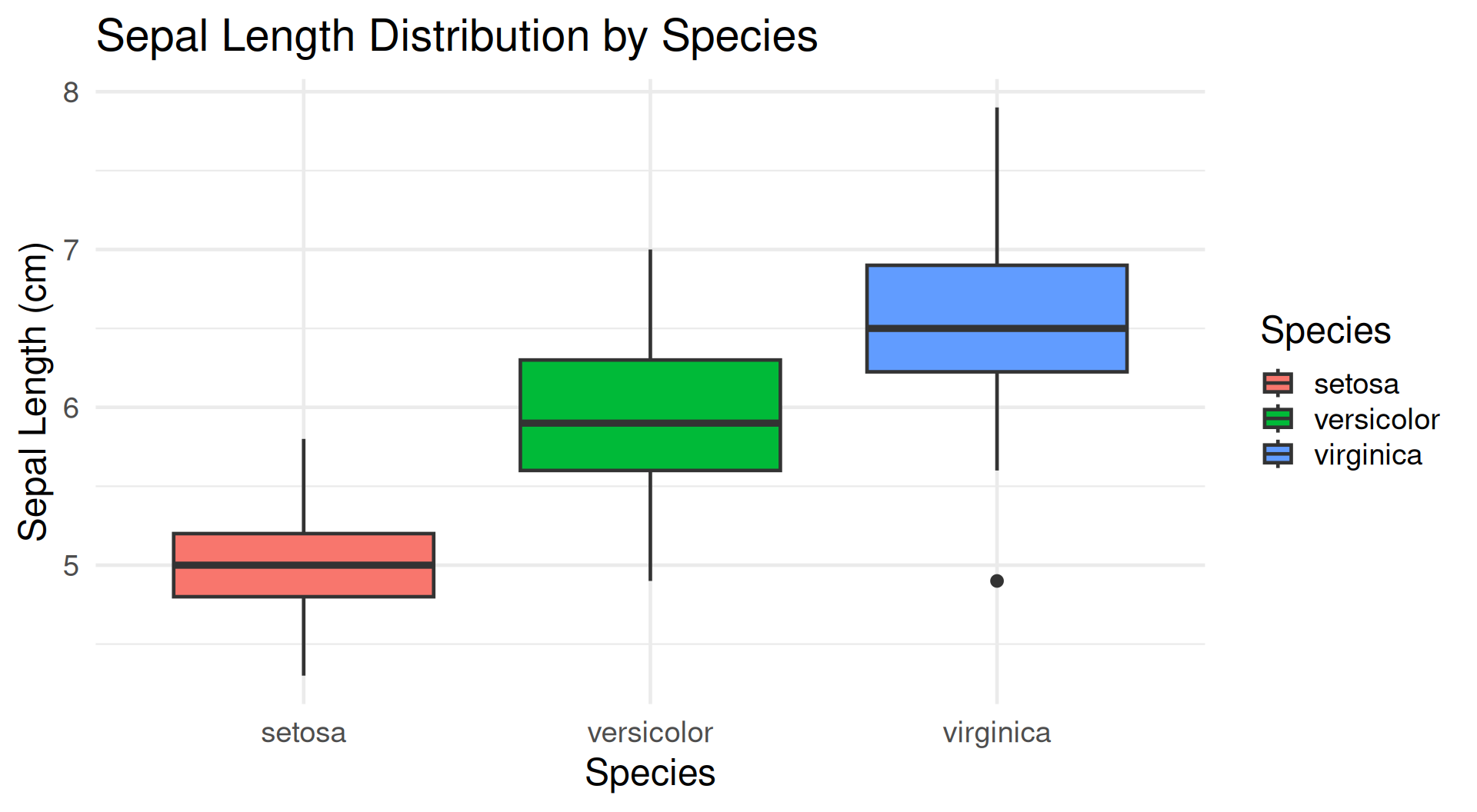
Visualizing Distributions — Box plots show median, quartiles, and outliers
Result: Basic Box Plot 📦
Read a Box Plot 📦
Note
The box summarizes the distribution; points beyond the whiskers are outliers.
- Box: Interquartile range (IQR) - middle 50% of data
- Line in Box: Median (50th percentile)
- Whiskers: Extend to 1.5 × IQR
- Points: Outliers beyond whiskers
- Hover to inspect exact values
Grouped Box Plots 📊
Comparing Multiple Groups
Result: Grouped Box Plots 📊
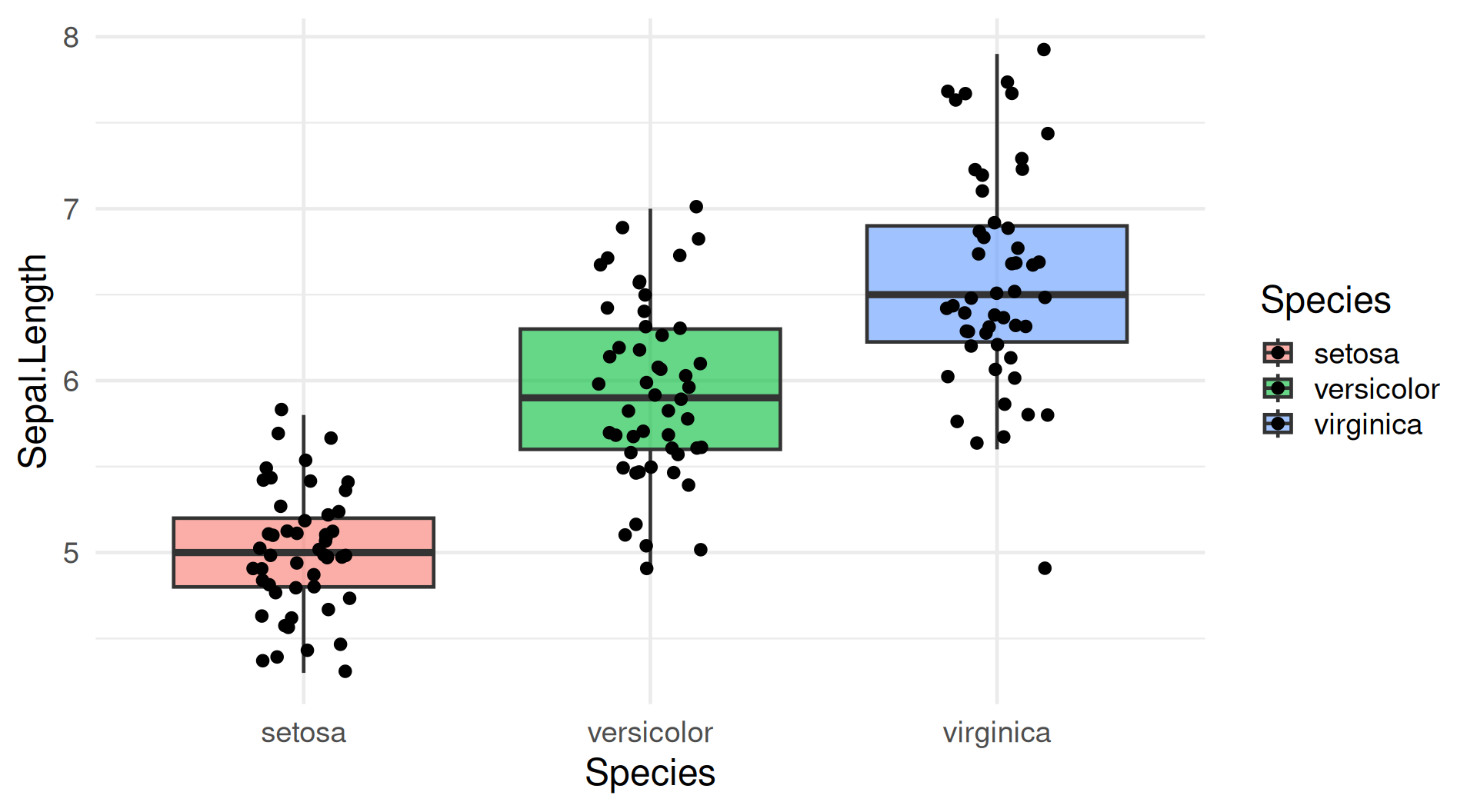
Show Individual Values on Box Plots 🔎
Tip
Jitter spreads points horizontally so overlapping observations are easier to see.
Result: Box Plot with Points 🔎
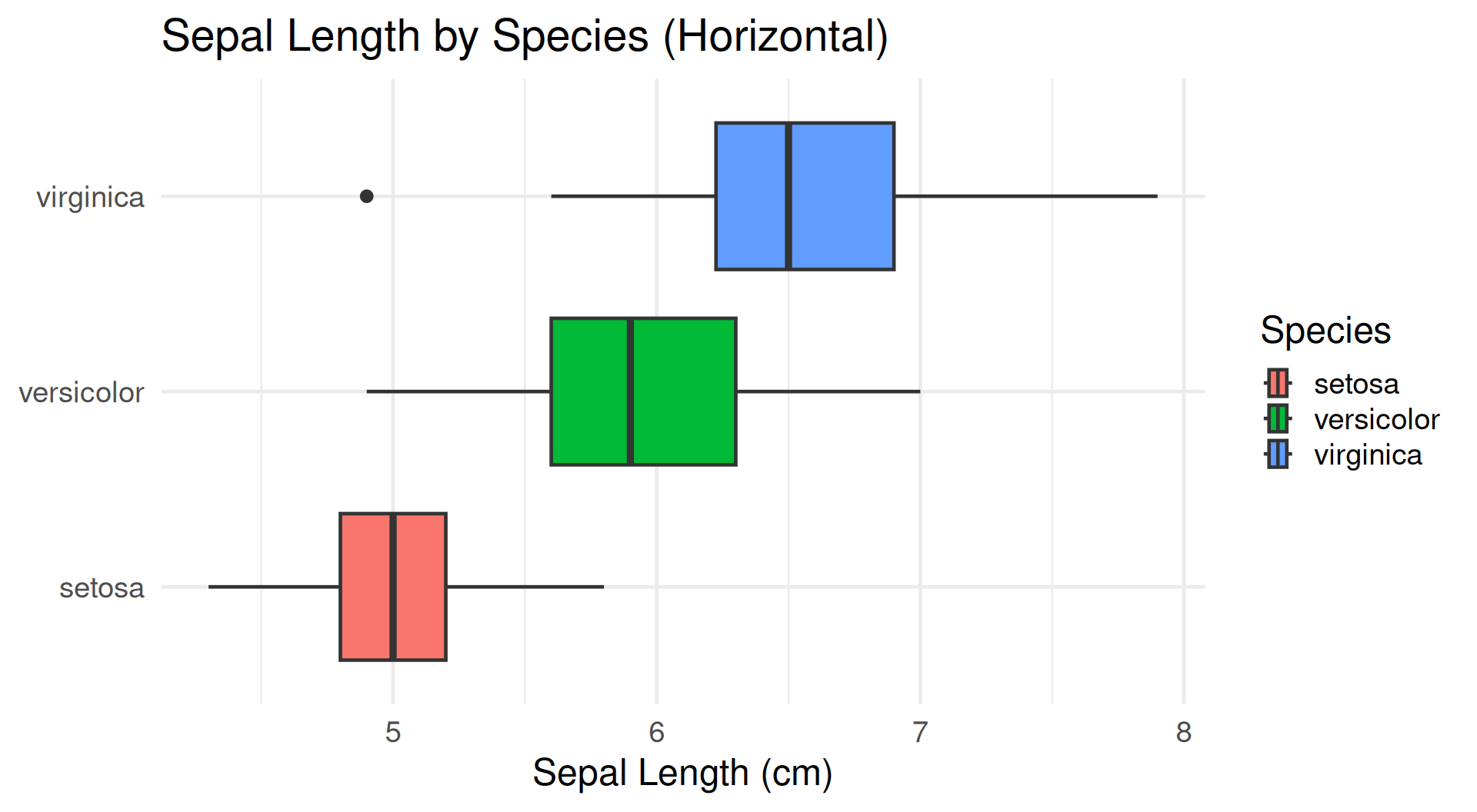
Horizontal Box Plots 🔄
Tip
Better for Long Category Names
# Horizontal orientation
fig <- plot_ly(data = iris,
x = ~Sepal.Length, # x for horizontal
y = ~Species, # y for categories
color = ~Species,
type = 'box',
orientation = 'h') # h for horizontal
fig <- fig %>% layout(
title = "Sepal Length by Species (Horizontal)",
xaxis = list(title = "Sepal Length (cm)"),
yaxis = list(title = "")
)
figResult: Horizontal Box Plots 🔄
Multiple Box Plots 📈
Note
Comparing Different Measurements
# Create subplot with multiple box plots
fig <- plot_ly(data = iris, x = ~Species) %>%
add_trace(y = ~Sepal.Length, name = 'Sepal Length',
type = 'box', boxmean = 'sd') %>%
add_trace(y = ~Sepal.Width, name = 'Sepal Width',
type = 'box', boxmean = 'sd') %>%
add_trace(y = ~Petal.Length, name = 'Petal Length',
type = 'box', boxmean = 'sd') %>%
add_trace(y = ~Petal.Width, name = 'Petal Width',
type = 'box', boxmean = 'sd') %>%
layout(title = "All Iris Measurements by Species",
yaxis = list(title = "Measurement (cm)"))
figResult: Multiple Box Plots 📈
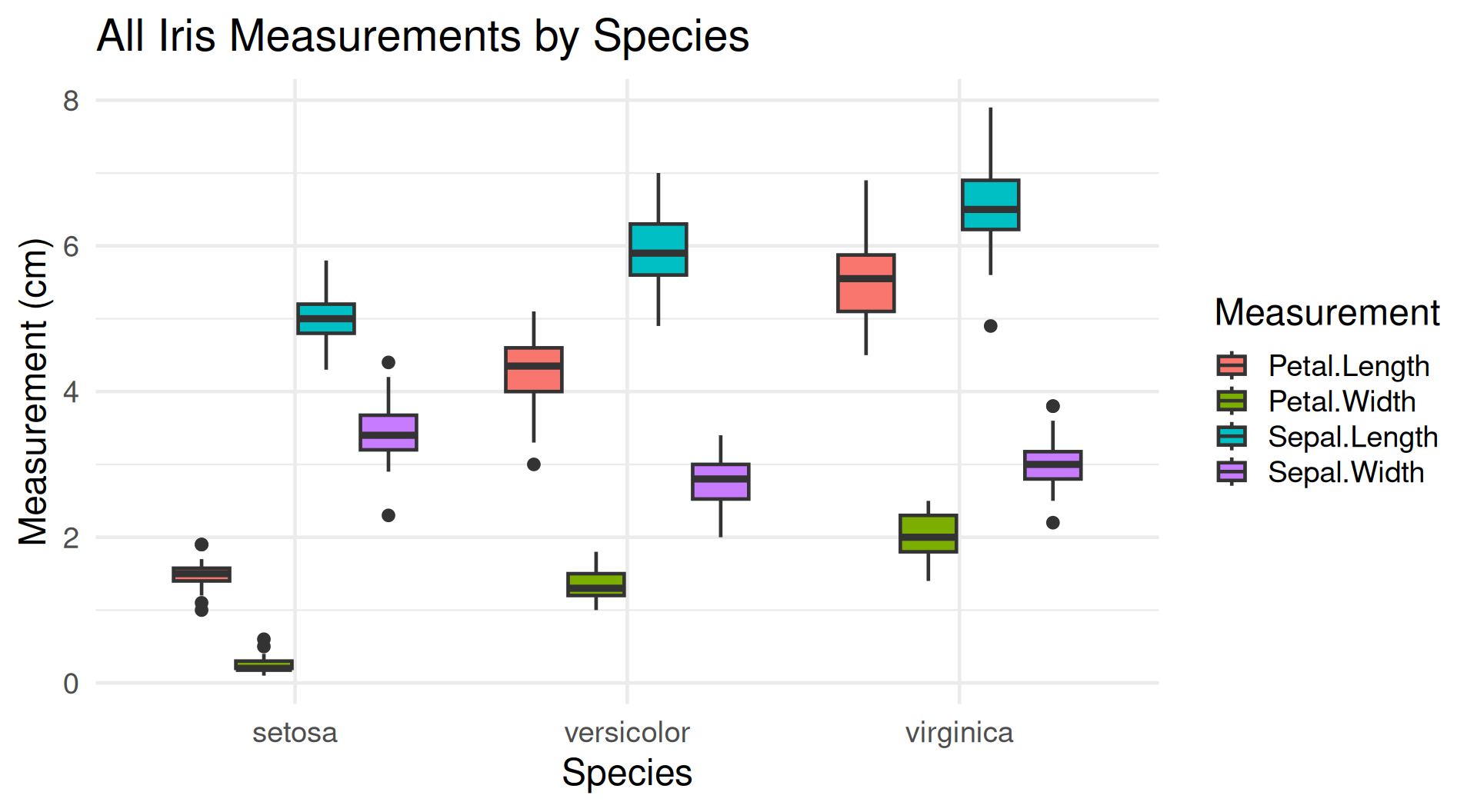
Show the Mean on a Box Plot 📈
Note
Set boxmean = 'sd' to show the mean and standard deviation.
Part 4: Histograms
Basic Histogram 📊
Distribution of a Single Variable
Result: Basic Histogram 📊
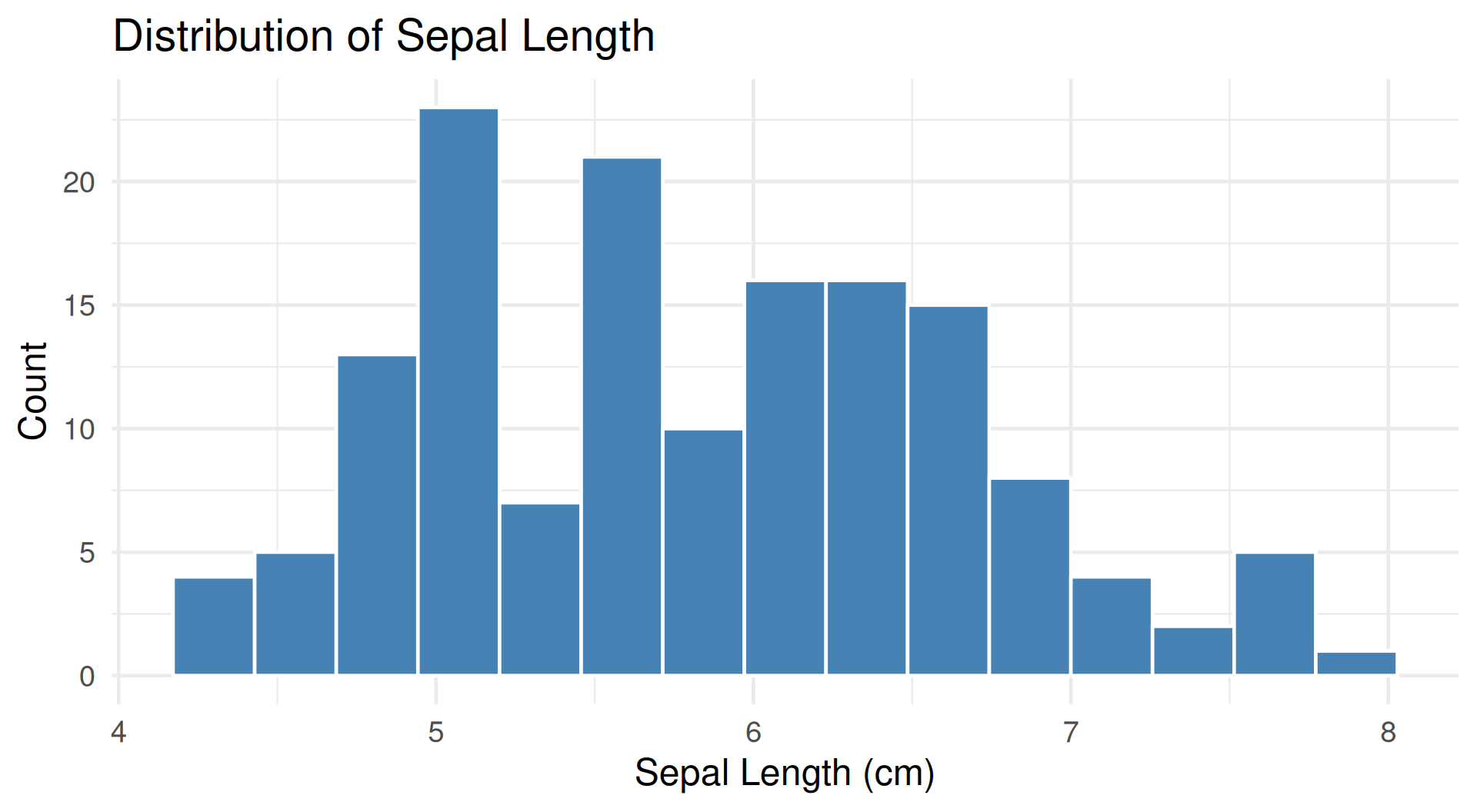
Histogram Bin Controls 📊
Note
Choose the number of bins or specify exact bin boundaries.
nbinsx: Number of bins (auto-calculated if not specified)xbins: Manual bin configuration
Understanding Binwidth ⚖️
Warning
Binwidth Matters! The choice of binwidth dramatically affects interpretation
Too Few Bins (Large Binwidth):
Advantages: ✅ Clear overall pattern, less noise
Disadvantages: ❌ Loses fine-grained patterns, may hide bimodality
Result: 5 Bins 📊
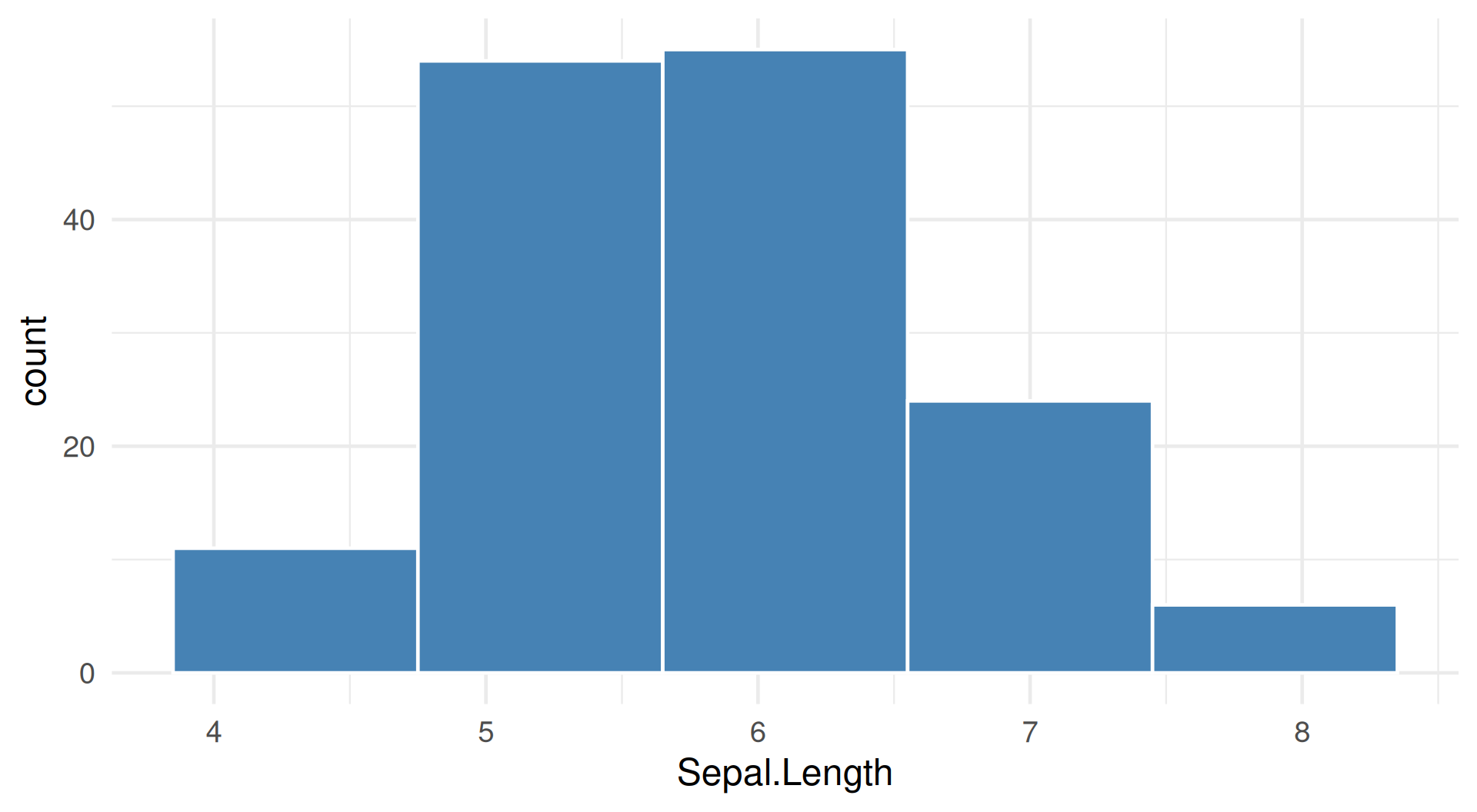
Binwidth: Finding Balance 🎯
Too Many Bins (Small Binwidth):
Advantages: ✅ Shows fine detail, reveals minor peaks
Disadvantages: ❌ Noisy, harder to see overall pattern, sparse bins
Result: 50 Bins 📊
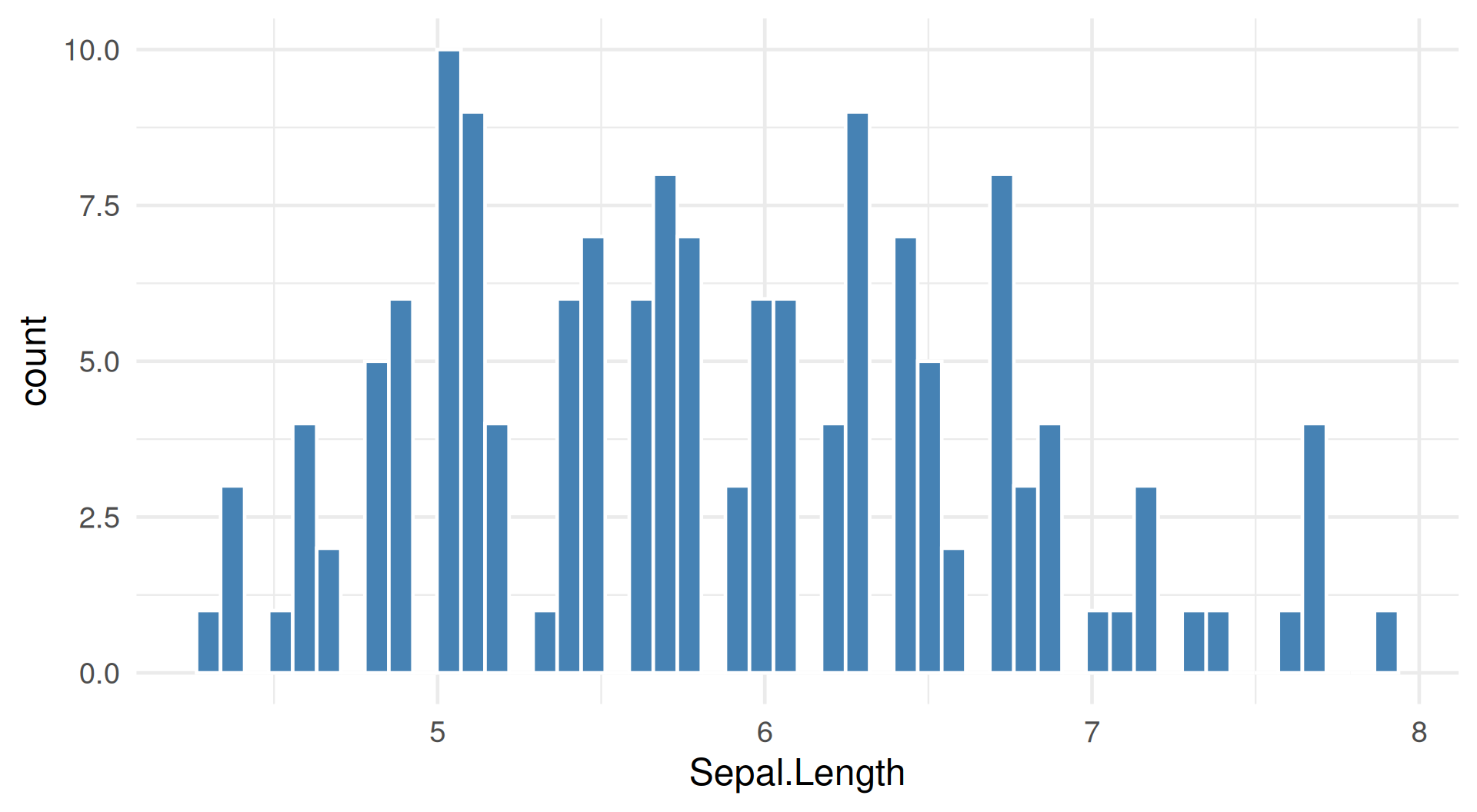
Choosing a Binwidth 🎨
Tip
Rules of Thumb for Choosing Bins
Common Rules:
- Sturges’ Rule:
bins ≈ log₂(n) + 1 - Square Root:
bins ≈ √n - Scott’s Rule:
binwidth ≈ 3.5σ / ∛n - Freedman-Diaconis:
binwidth ≈ 2IQR / ∛n
Try an Automatic Binwidth 🎨
Tip
Plotly chooses a default binning; compare it with other choices to see which best tells the data’s story.
Result: Automatic Binwidth 🎨
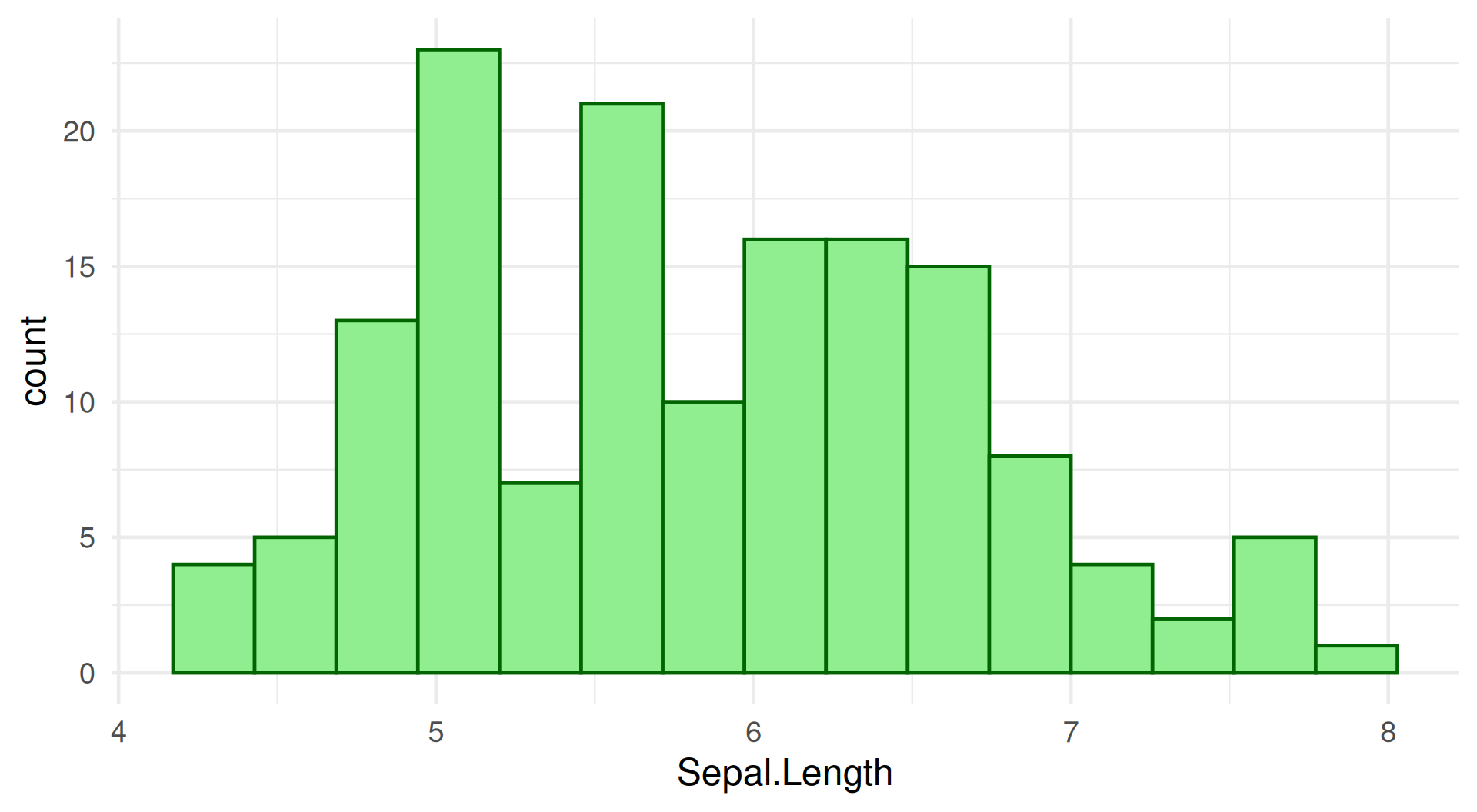
Custom Binwidth 🔧
Note
Manual Control Over Bins
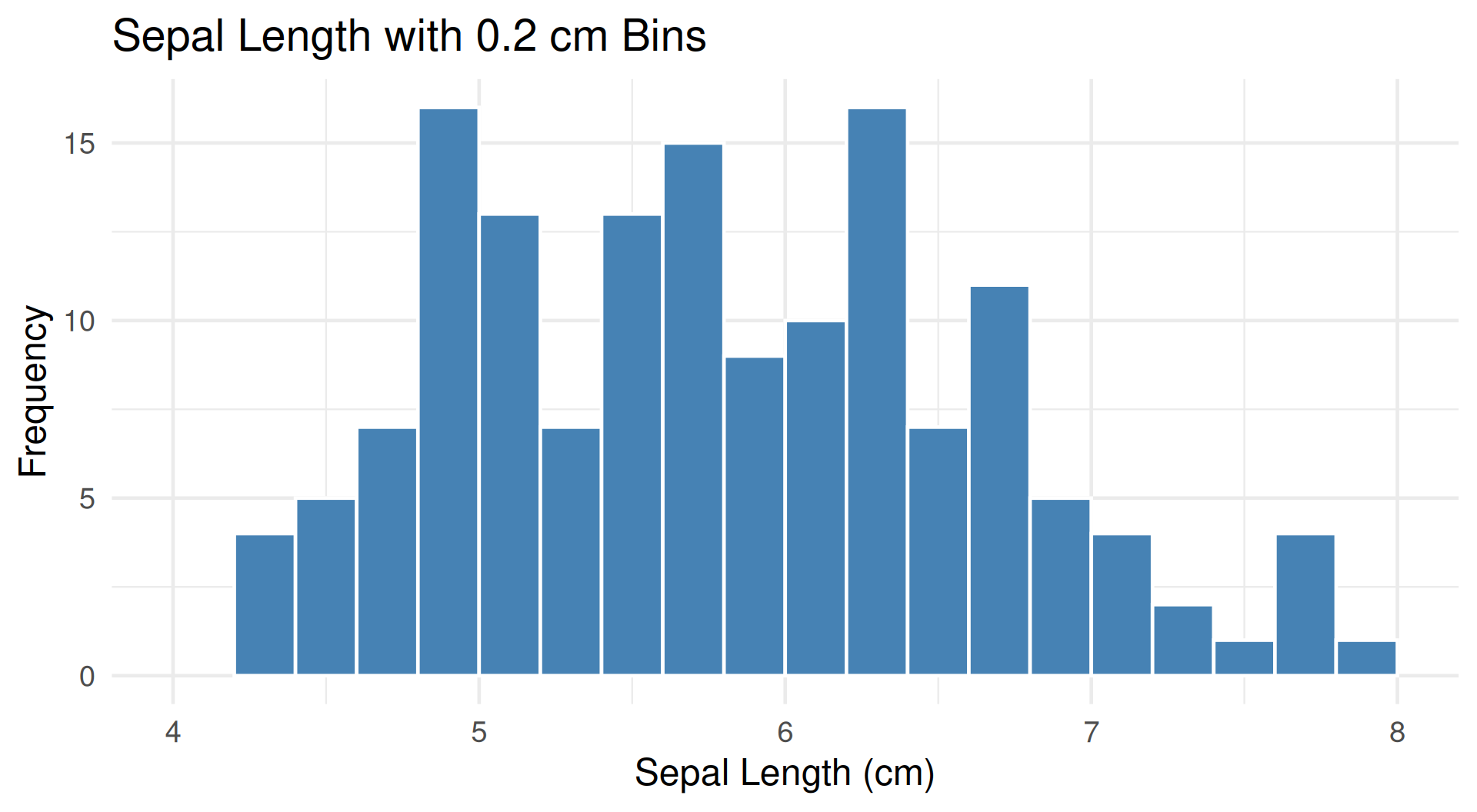
# Specify exact bin size
fig <- plot_ly(x = ~iris$Sepal.Length,
type = 'histogram',
xbins = list(
start = 4.0, # First bin starts at 4
end = 8.0, # Last bin ends at 8
size = 0.2 # Each bin is 0.2 cm wide
))
fig <- fig %>% layout(
title = "Sepal Length with 0.2 cm Bins",
xaxis = list(title = "Sepal Length (cm)"),
yaxis = list(title = "Frequency")
)
figResult: Custom Binwidth 🔧
Overlaid Histograms 📊
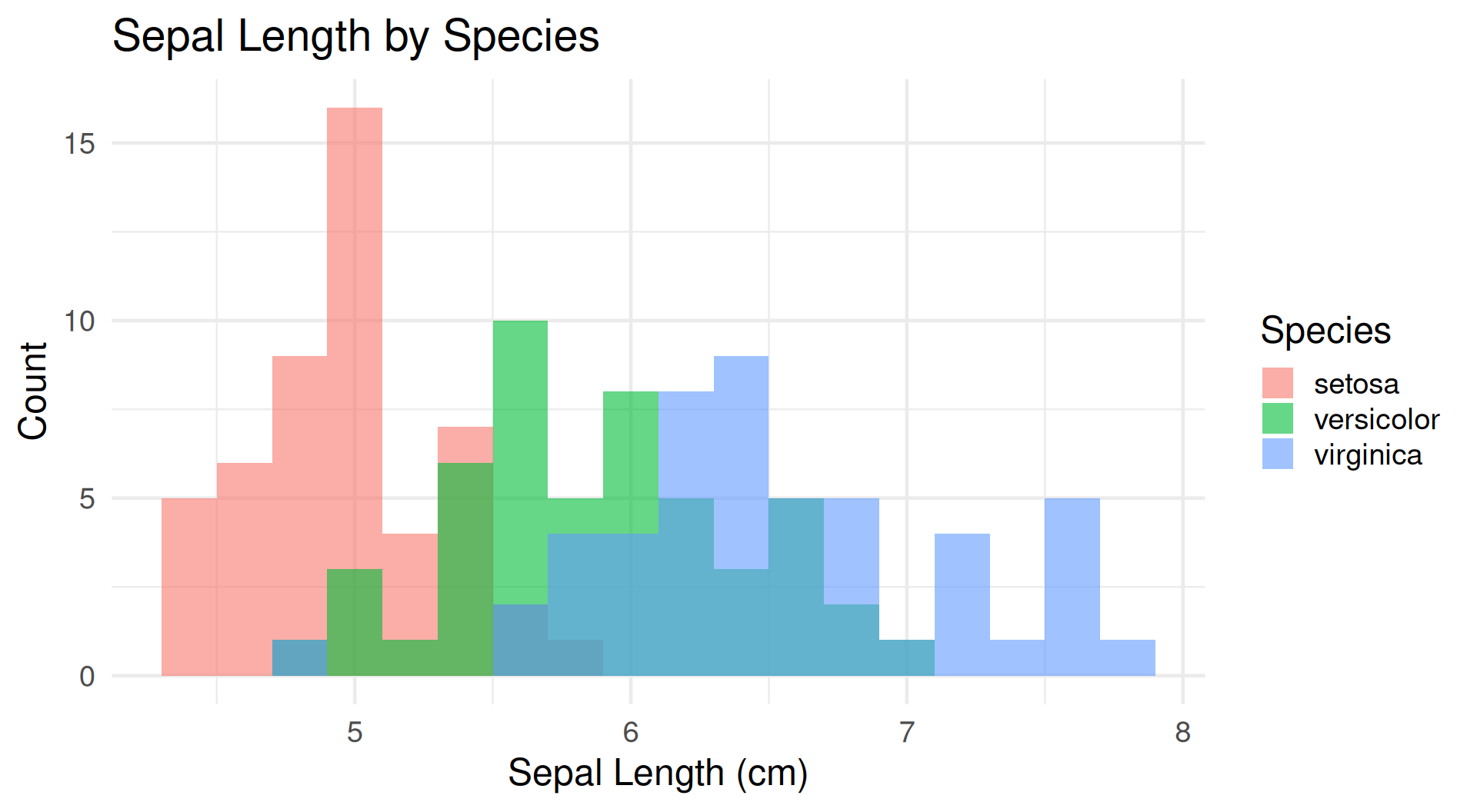
Comparing Distributions
# Create separate data for each species
setosa <- iris %>% filter(Species == "setosa")
versicolor <- iris %>% filter(Species == "versicolor")
virginica <- iris %>% filter(Species == "virginica")
# Overlaid histograms
fig <- plot_ly(alpha = 0.6) %>%
add_histogram(x = ~setosa$Sepal.Length, name = "Setosa") %>%
add_histogram(x = ~versicolor$Sepal.Length, name = "Versicolor") %>%
add_histogram(x = ~virginica$Sepal.Length, name = "Virginica") %>%
layout(barmode = "overlay", # Overlay instead of stack
title = "Sepal Length by Species",
xaxis = list(title = "Sepal Length (cm)"),
yaxis = list(title = "Count"))
figOther barmode options: 'stack', 'group'
Result: Overlaid Histograms 📊
Stacked Histograms 📚
Tip
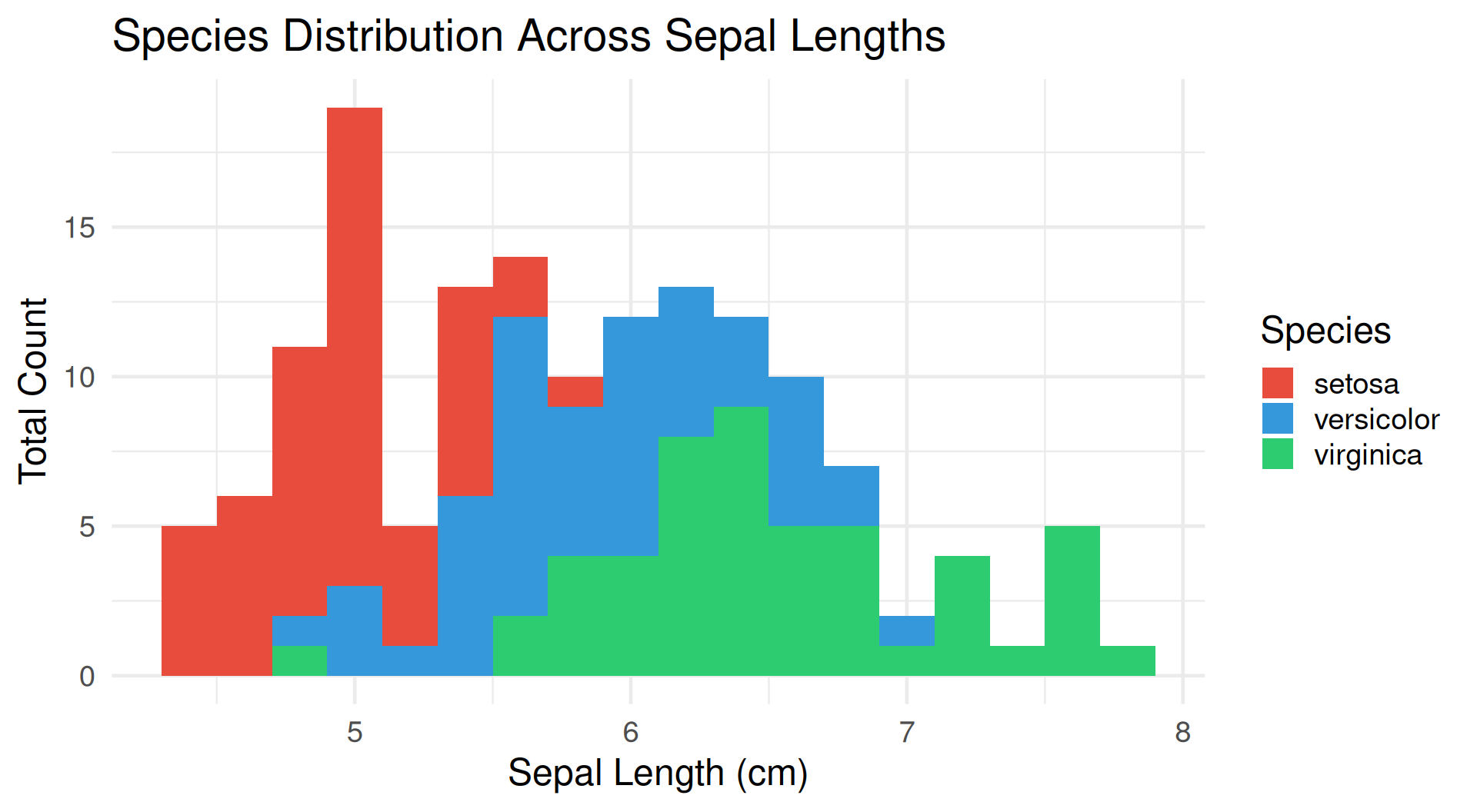
Showing Composition
# Stacked histogram
fig <- plot_ly() %>%
add_histogram(x = ~setosa$Sepal.Length,
name = "Setosa",
marker = list(color = '#e74c3c')) %>%
add_histogram(x = ~versicolor$Sepal.Length,
name = "Versicolor",
marker = list(color = '#3498db')) %>%
add_histogram(x = ~virginica$Sepal.Length,
name = "Virginica",
marker = list(color = '#2ecc71')) %>%
layout(barmode = "stack",
title = "Species Distribution Across Sepal Lengths",
xaxis = list(title = "Sepal Length (cm)"),
yaxis = list(title = "Total Count"))
figResult: Stacked Histograms 📚
Part 5: Other Plot Types
Bar Charts 📊
Note
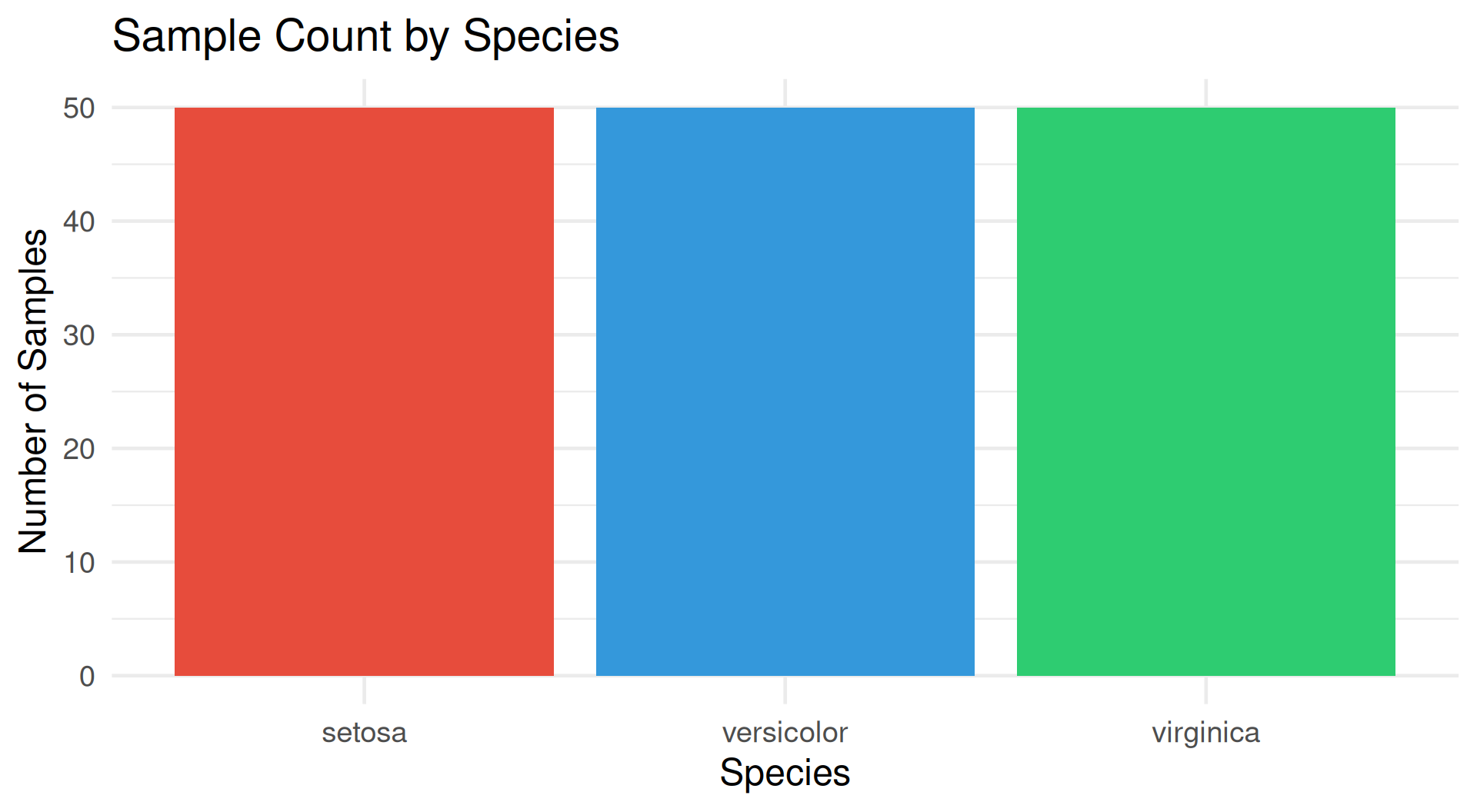
Categorical Data Visualization
# Count by species
species_count <- iris %>%
group_by(Species) %>%
summarise(Count = n())
fig <- plot_ly(data = species_count,
x = ~Species,
y = ~Count,
type = 'bar',
marker = list(color = c('#e74c3c', '#3498db', '#2ecc71')))
fig <- fig %>% layout(
title = "Sample Count by Species",
xaxis = list(title = "Species"),
yaxis = list(title = "Number of Samples")
)
figResult: Bar Chart 📊
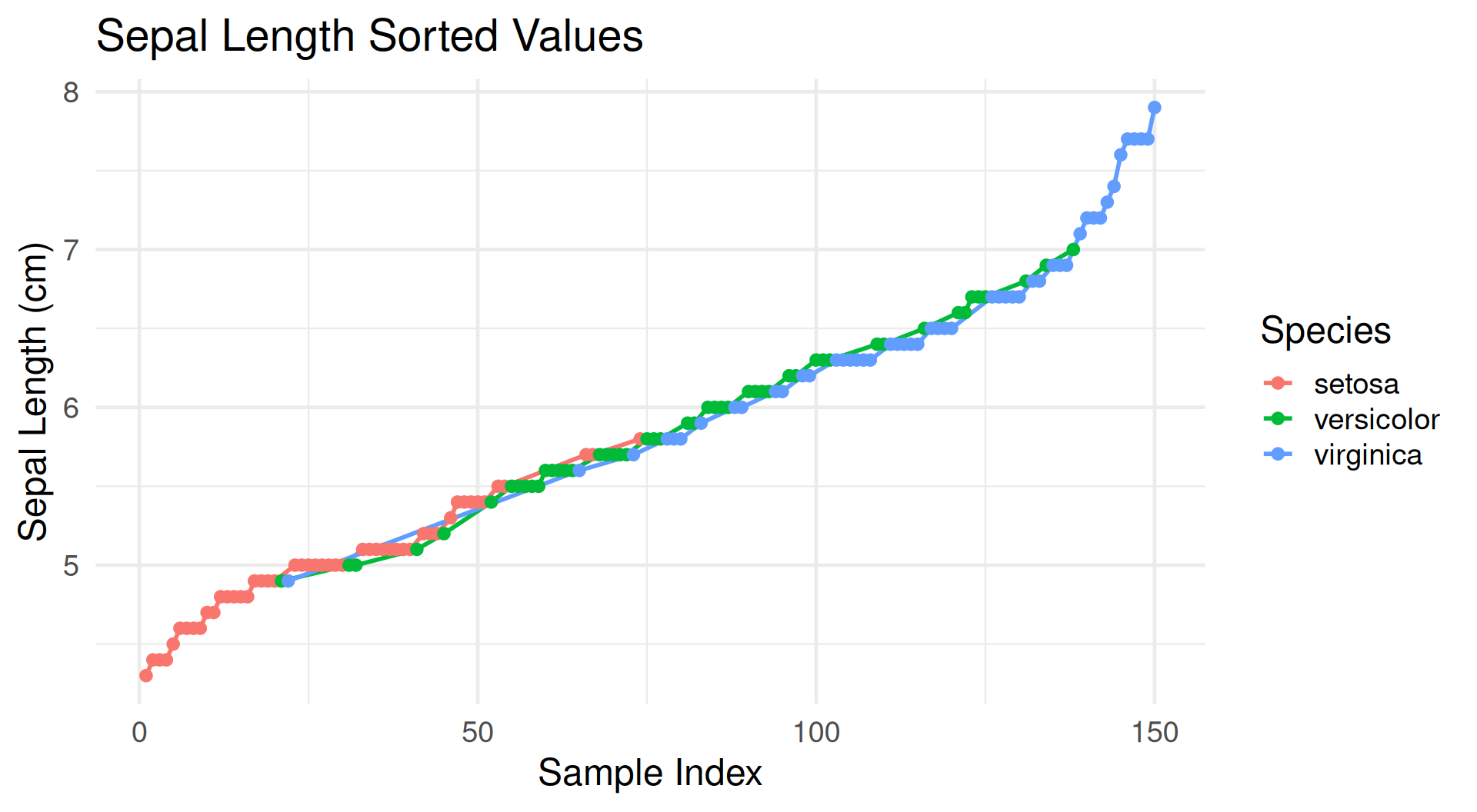
Line Charts 📈
Time Series and Trends
iris_sorted <- iris %>% arrange(Sepal.Length)
fig <- plot_ly(iris_sorted, x = ~seq_along(Sepal.Length),
y = ~Sepal.Length, color = ~Species,
type = 'scatter', mode = 'lines+markers',
line = list(width = 2), marker = list(size = 6)) %>%
layout(title = "Sepal Length Sorted Values",
xaxis = list(title = "Sample Index"),
yaxis = list(title = "Sepal Length (cm)"))
figResult: Line Chart 📈
Violin Plots 🎻
Tip
Density + Box Plot Combined
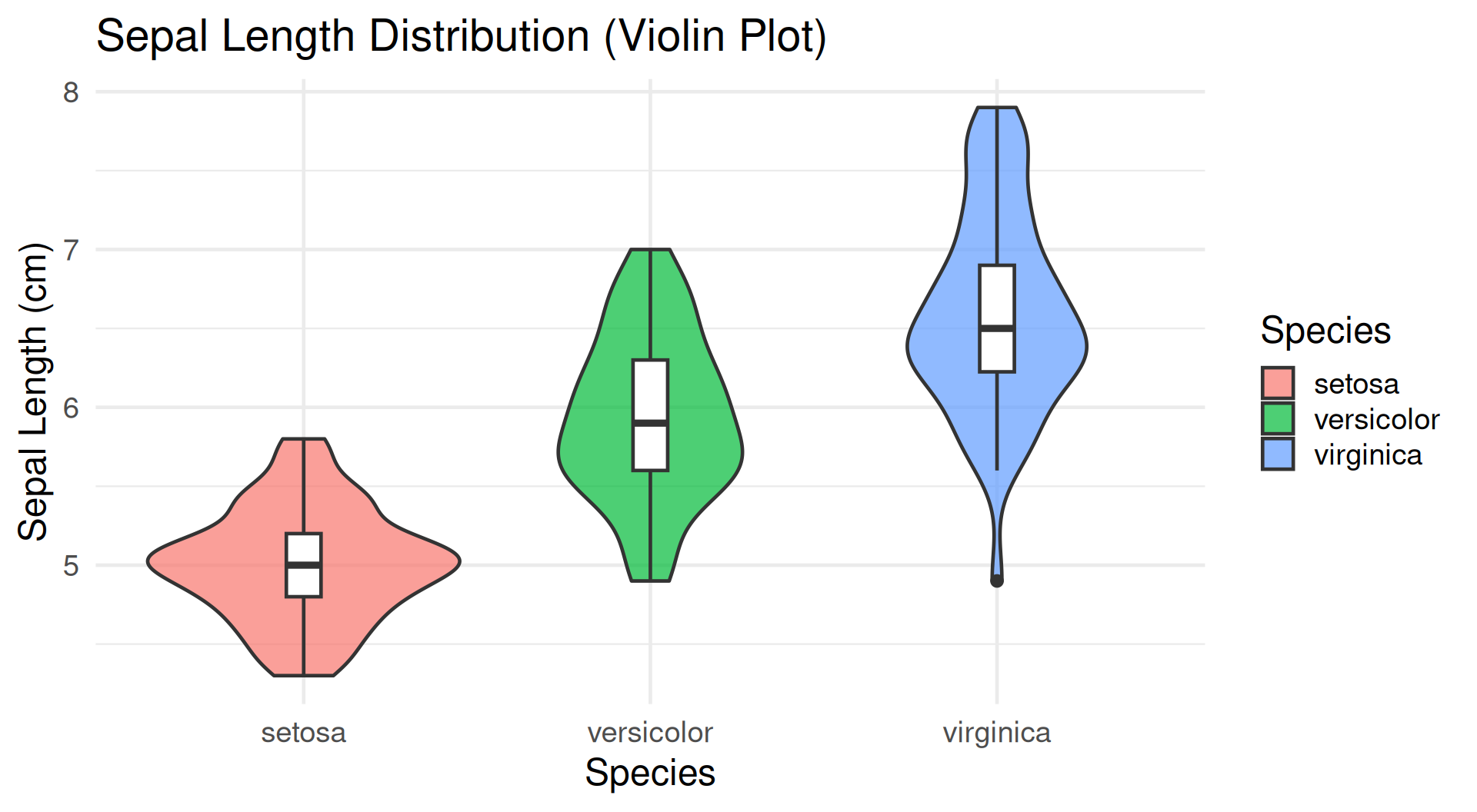
# Violin plot shows distribution shape
fig <- plot_ly(data = iris,
x = ~Species,
y = ~Sepal.Length,
color = ~Species,
type = 'violin',
box = list(visible = TRUE), # Show box plot inside
meanline = list(visible = TRUE)) # Show mean line
fig <- fig %>% layout(
title = "Sepal Length Distribution (Violin Plot)",
xaxis = list(title = "Species"),
yaxis = list(title = "Sepal Length (cm)")
)
figViolin plots show the full probability density, making them superior to box plots for multimodal distributions!
Result: Violin Plot 🎻
Heatmaps 🔥
Note
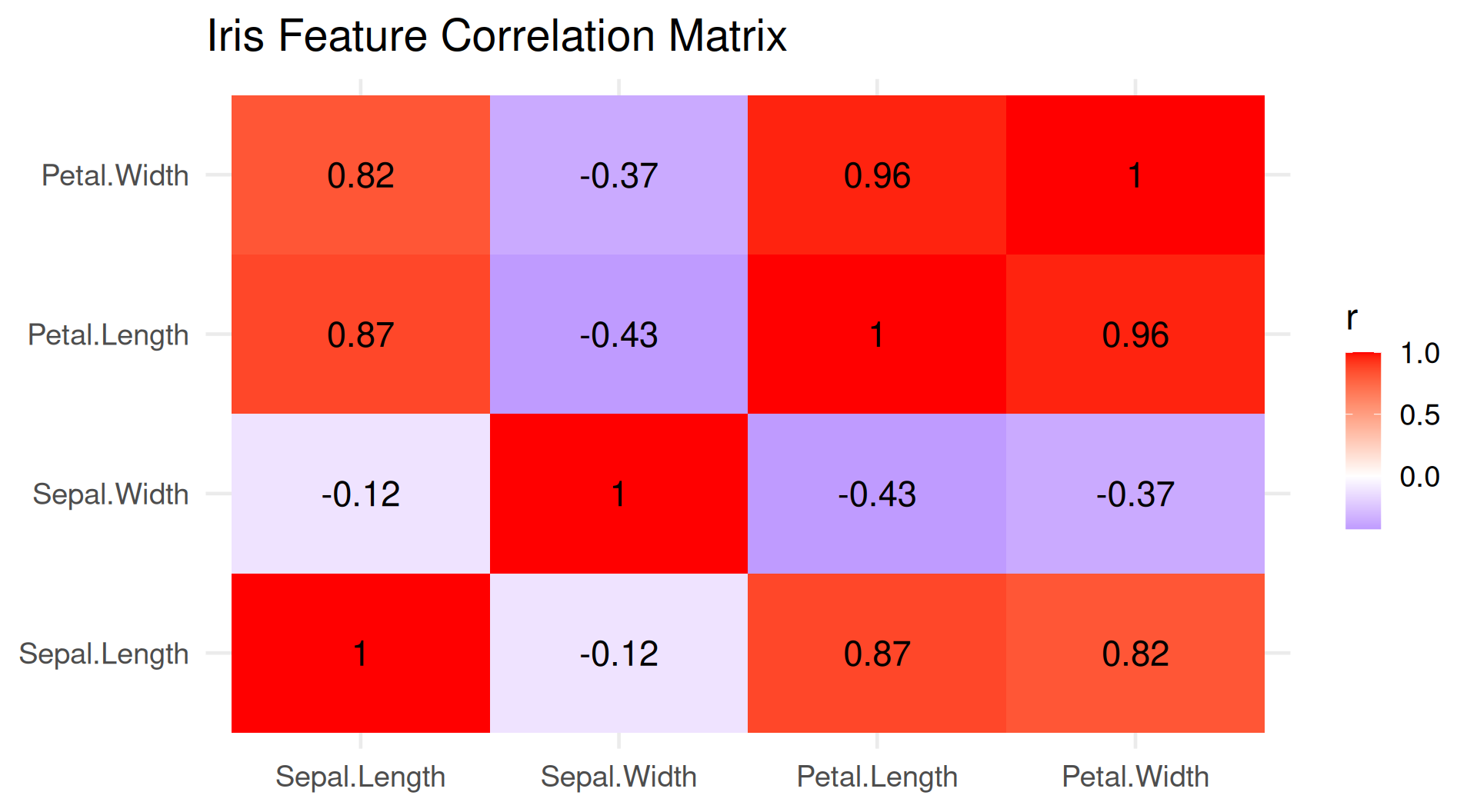
Correlation Matrix Visualization
iris_numeric <- iris %>% select(-Species)
cor_matrix <- cor(iris_numeric)
fig <- plot_ly(x = colnames(cor_matrix), y = rownames(cor_matrix),
z = cor_matrix, type = "heatmap",
colors = colorRamp(c("blue", "white", "red"))) %>%
layout(title = "Iris Feature Correlation Matrix",
xaxis = list(title = ""), yaxis = list(title = ""))
figResult: Heatmap 🔥
3D Scatter Plots 🌐
Three-Dimensional Data
fig <- plot_ly(iris, x = ~Sepal.Length, y = ~Sepal.Width,
z = ~Petal.Length, color = ~Species,
type = 'scatter3d', mode = 'markers',
marker = list(size = 5)) %>%
layout(scene = list(
xaxis = list(title = 'Sepal Length'),
yaxis = list(title = 'Sepal Width'),
zaxis = list(title = 'Petal Length')),
title = "3D Iris Visualization")
figInteractivity is KEY! Rotate the plot by clicking and dragging!
Part 6: Customization & Styling
Layout Customization 🎨
Tip
Fine-Tuning Your Plots
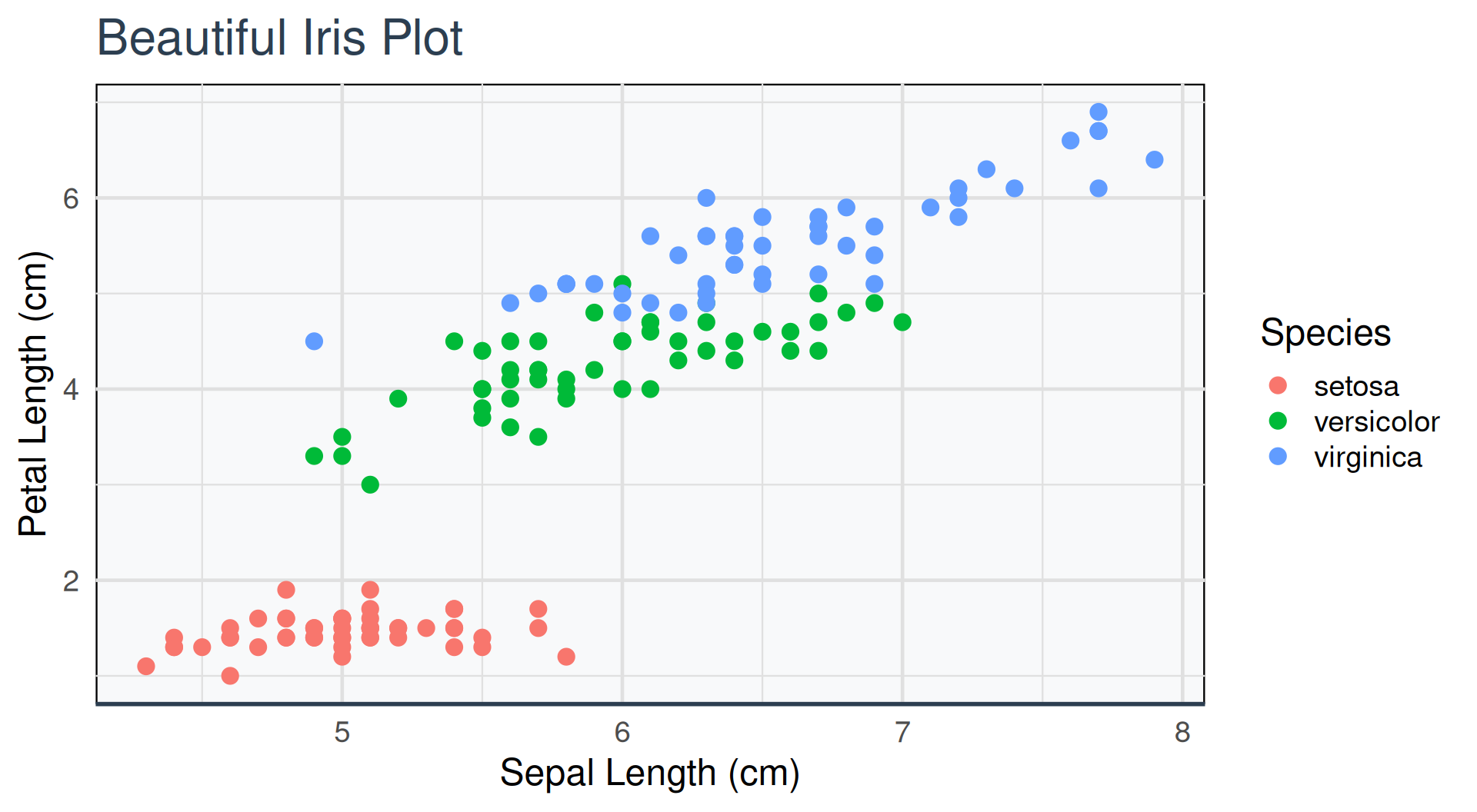
fig <- plot_ly(iris, x = ~Sepal.Length, y = ~Petal.Length,
               color = ~Species, type = 'scatter', mode = 'markers')
fig <- fig %>% layout(
title = list(text = "Beautiful Iris Plot",
font = list(size = 24, color = '#2c3e50')),
xaxis = list(title = "Sepal Length (cm)", gridcolor = '#E0E0E0',
showline = TRUE, linecolor = '#2c3e50', linewidth = 2),
yaxis = list(title = "Petal Length (cm)", gridcolor = '#E0E0E0'),
plot_bgcolor = '#F8F9FA', paper_bgcolor = '#FFFFFF')
figResult: Layout Customization 🎨
Color Scales 🌈
Note
Using Color Effectively
Result: Continuous Color Scale 🌈
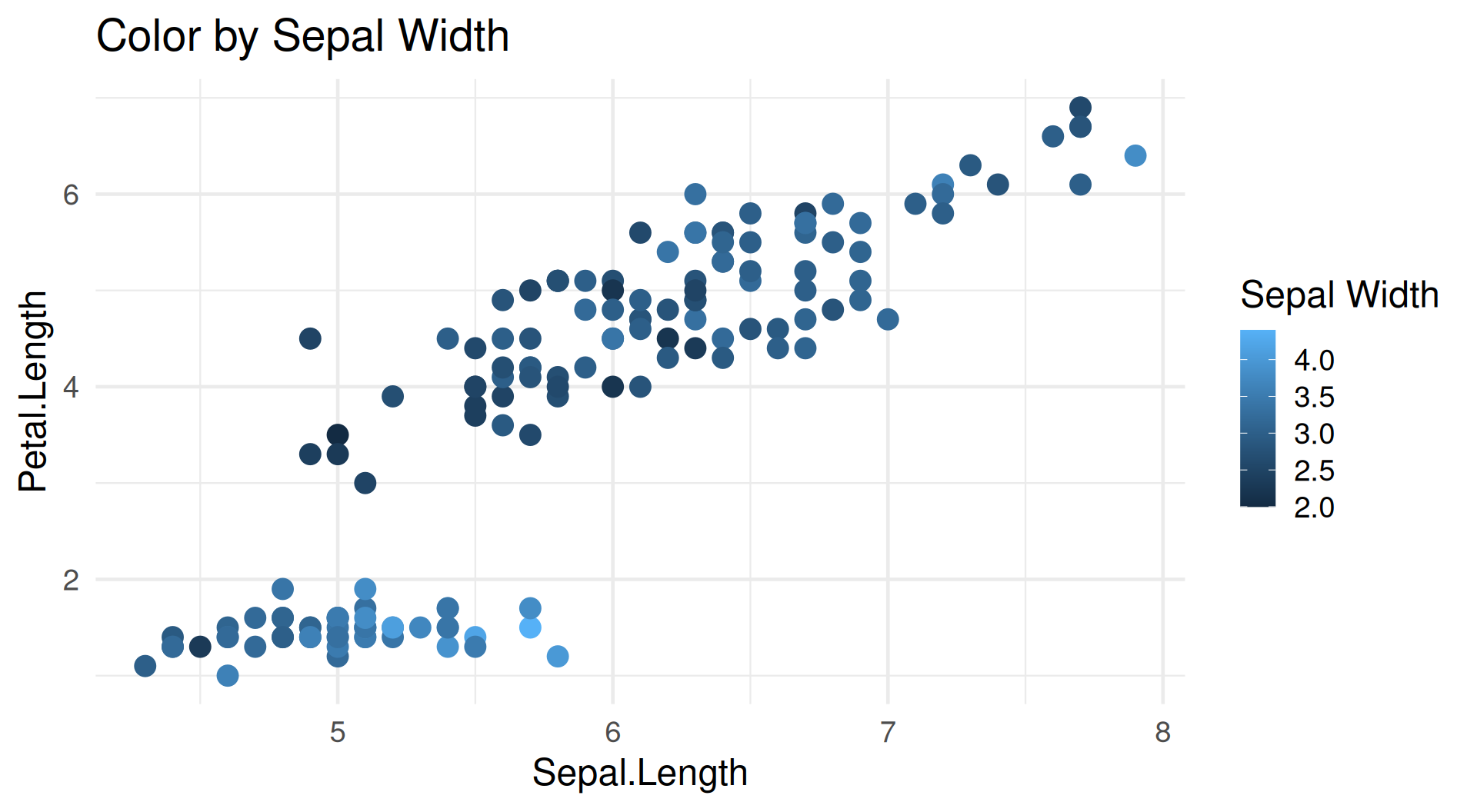
Choose a Color Scale 🌈
Note
Use a palette that helps readers distinguish values without distracting from the data.
Built-in Color Scales:
colors = 'Viridis','Blues','Reds','RdBu'- Or use custom:
colors = colorRamp(c("blue", "yellow", "red"))
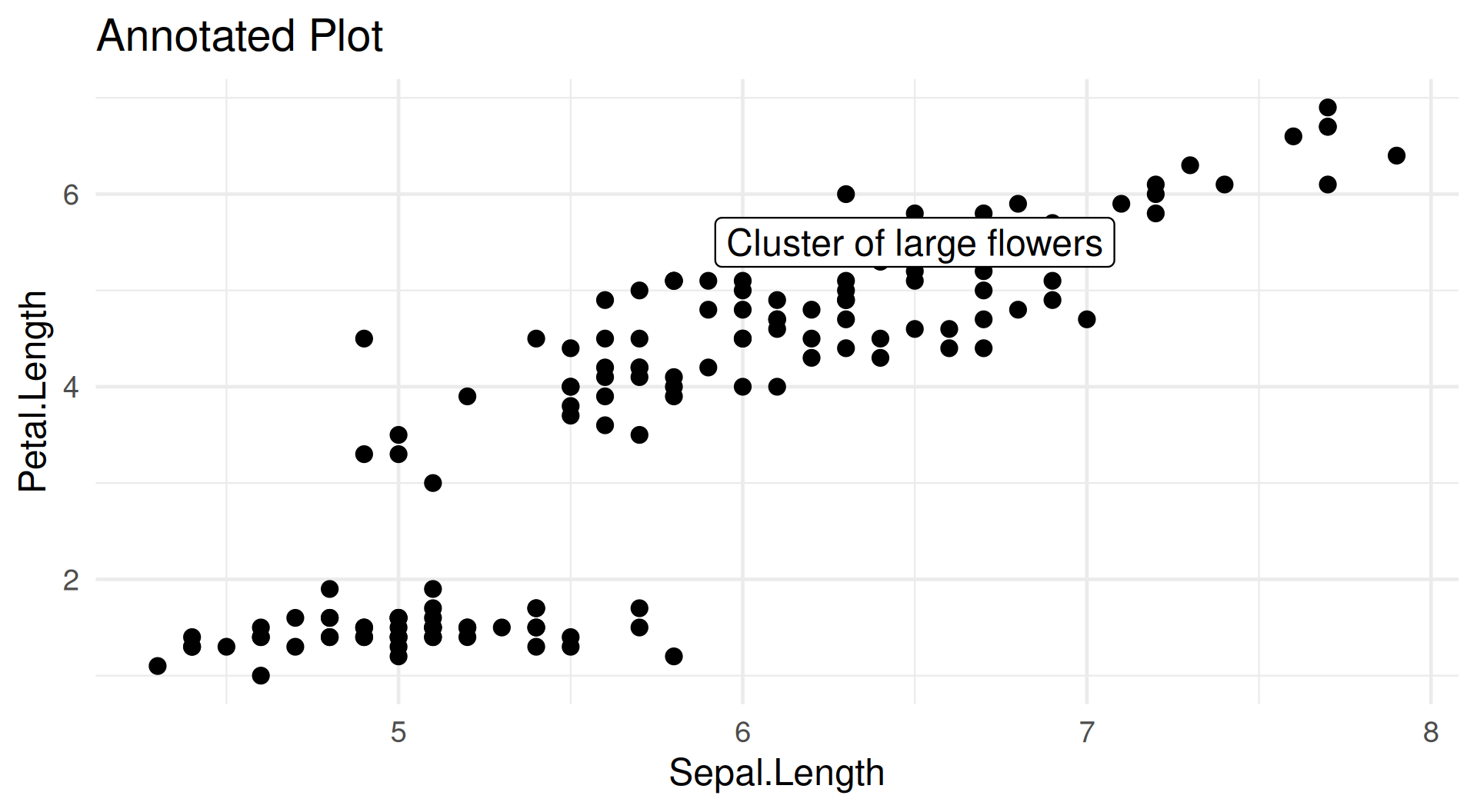
Add an Annotation 📝
Add a text label and arrow to call attention to a data point.
Result: Annotated Plot 📝
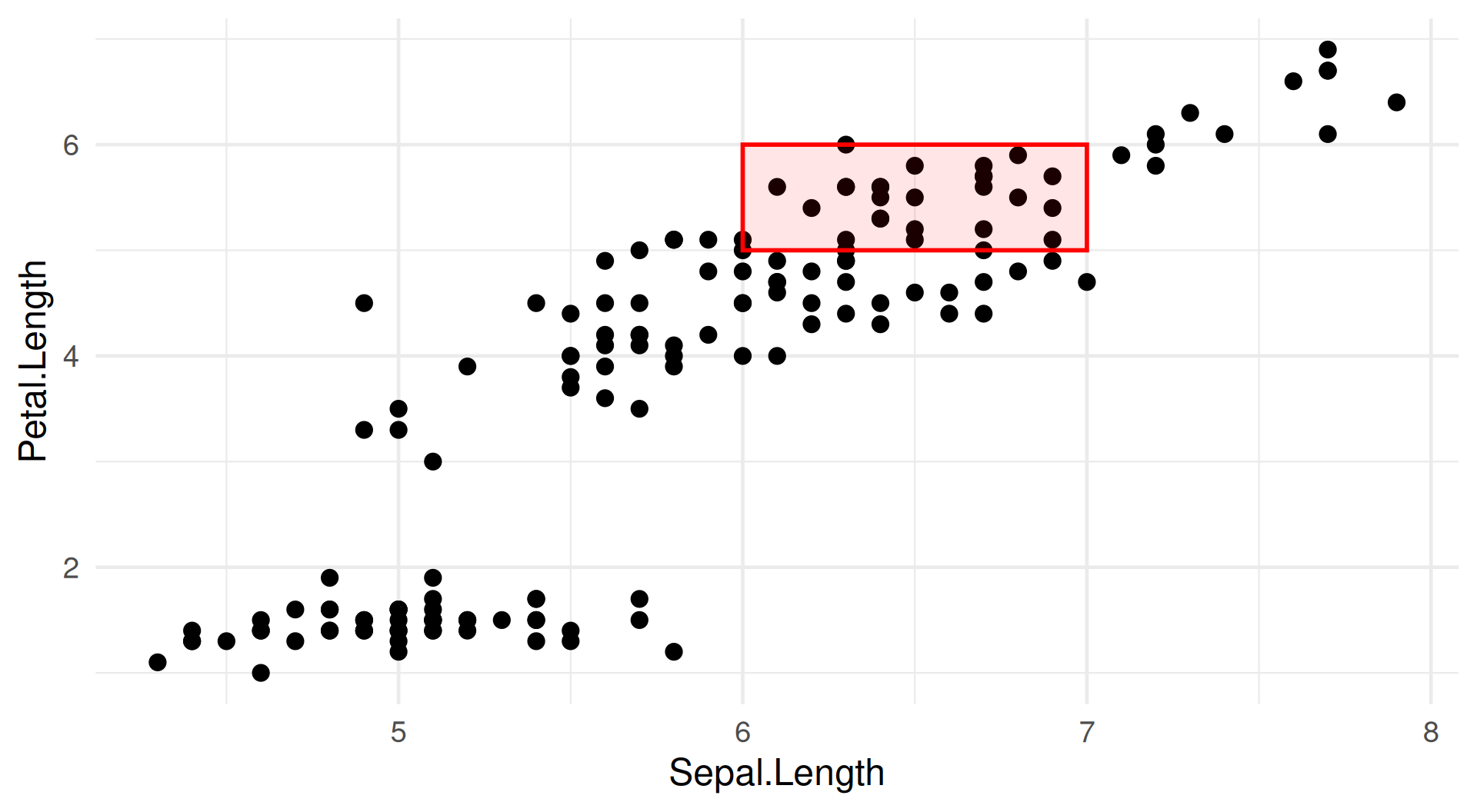
Highlight a Region with a Shape 🟥
Tip
Use a transparent rectangle to mark an area of the plot without hiding the data.
Result: Highlighted Region 🟥
Subplots 📊📊
Tip
Multiple Plots in One Figure
library(plotly)

# Create individual plots
p1 <- plot_ly(iris, x = ~Sepal.Length, type = "histogram",
              name = "Sepal Length")
p2 <- plot_ly(iris, x = ~Petal.Length, type = "histogram",
              name = "Petal Length")
p3 <- plot_ly(iris, x = ~Sepal.Length, y = ~Petal.Length,
              color = ~Species, type = "scatter", mode = "markers")
p4 <- plot_ly(iris, x = ~Species, y = ~Sepal.Length,
              color = ~Species, type = "box")
Combine Plots in a Grid 📊
Tip
After defining p1 through p4, arrange them in a 2 × 2 layout.
Part 7: Interactive Code Generator
Plotly Code Generator 🛠️
Build Your Own Plotly Visualization!
Interactive tool to generate Plotly code for different plot types
Plotly Code Generator
Click "Generate Code" to create your Plotly code!
Try the Generator! 🎮
Tip
Interactive Learning — Experiment with the controls and inspect the generated code.
Try these options:
- Switch datasets and plot types
- Add a color variable and choose a color scale
- Generate and copy the code
Try it: Generate code for a 3D scatter plot of iris data colored by Species!
Part 8: Best Practices
When to Use Plotly 🤔
Note
Choosing the Right Tool
Choose Plotly for:
✅ Interactive dashboards and web apps
✅ Exploratory data analysis
✅ Presentations where you can click and zoom
✅ Sharing HTML reports
✅ 3D visualizations
When to Use ggplot2 🤔
Note
Choose a static plot when publication control matters most.
✅ Publication-quality static graphics
✅ Fine-grained control over every element
✅ Complex multi-layered plots
✅ PDF/PNG exports for papers
✅ Faceted plots with many panels
Need both? Convert a ggplot with ggplotly().
Converting ggplot2 to Plotly 🔄
The Power of ggplotly()
Advantages:
- Keeps all your ggplot2 customization
- Automatically adds interactivity
- One line of code!
Performance Tips 🚀
Warning
Making Plotly Fast
For Large Datasets:
# 1. Use webgl for better performance
fig <- plot_ly(data = large_dataset,
               x = ~x, y = ~y,
               type = 'scattergl',  # Note: scattergl instead of scatter
               mode = 'markers')

# 2. Reduce marker count with sampling
sampled <- large_dataset %>% sample_n(1000)
fig <- plot_ly(data = sampled, ...)

# 3. Disable hover for thousands of points
fig <- plot_ly(..., hoverinfo = 'skip')
Keep Large Plots Responsive ⚡
Note
Choose a rendering strategy that matches the size of your data.
Tips:
- Use
scatterglfor >1000 points - Consider aggregation or binning for huge datasets
- Disable unnecessary interactive features
Saving Plotly Plots 💾
Tip
Export Options
Export a Static Image 🖼️
Tip
Static PNG export requires a configured image engine such as Kaleido.
Embed a Plot in a Report 📄
Note
In an R Markdown or Quarto document, print the plot object to include it.
Key Takeaways: Core Ideas 🎯
Note
What We Learned
1. Installation: Use install.packages('plotly') and setup functions
2. Basic Syntax:
3. Plot Types: - Scatter, Box, Histogram, Bar, Line, Violin, Heatmap, 3D
4. Binwidths: - Too few bins → lose detail - Too many bins → too noisy - Use Plotly’s smart defaults or calculate optimal bins
Key Takeaways: Customize and Extend 🎨
Note
Make plots clearer and shareable
5. Customization: - layout() for axes, titles, colors - add_trace() for multiple layers - Annotations and shapes for context
Practice Challenge 🏆
Tip
Try This on Your Own!
Challenge: Create an interactive Plotly visualization using the mtcars dataset
Requirements:
- Create a scatter plot of
mpgvswt(weight) - Color points by
cyl(cylinders) - Add custom hover text showing car name and horsepower
- Include a title and axis labels
- Customize the color scheme
Practice Challenge: Bonus Ideas 🏆
Tip
Try an extension after the required scatter plot is complete.
Bonus:
- Add a trend line
- Create a subplot with a histogram of mpg
- Make it 3D by adding
dispas z-axis
Time: 5-10 minutes
Resources 📚
Continue Learning
Documentation: Plotly R · Graph reference · Community forum
Tutorials: Getting started · Plotly book · R Graph Gallery
Cheat sheet: Plotly R PDF
So What Did We Cover, Again?
Note
Keep Exploring!
You now know how to:
✅ Install and set up Plotly
✅ Create interactive scatter, box, and histogram plots
✅ Choose appropriate binwidths
✅ Customize plots with colors, layouts, and themes
✅ Use the code generator for quick starts
✅ Convert ggplot2 plots to interactive Plotly plots
What to Try Next 🚀
Note
Keep exploring with your own data
Next Steps:
- Practice with your own datasets
- Explore advanced plot types (sunburst, sankey, etc.)
- Build interactive dashboards with Shiny + Plotly
- Share your visualizations on the web!
Happy Plotting! 📊✨